• Skip to primary navigation
  • Skip to main content
  • Skip to primary sidebar
technzee logo

Technzee

reaking Down the Machines That Power Computing

  • Home
  • Blog
  • Terms
    • Privacy
    • Disclaimer
  • Support
  • Subscribe
  • Contact
  • Show Search
Hide Search

Rajeev Bagra

PrimeOS vs Windows, Linux, and Android: A Complete Guide + How to Revive It on Your Old Windows 7 Laptop

August 25, 2025 by Rajeev Bagra

Old laptops lying around with outdated Windows 7 can still breathe new life. One of the best ways to do this is by installing PrimeOS, a desktop-oriented Android OS fork designed for x86 systems. In this blog, we’ll compare PrimeOS with Windows, Linux, and stock Android, explore how to revive PrimeOS on a Windows 7 laptop, share troubleshooting resources, and even look at approximate costs.


🔎 PrimeOS at a Glance

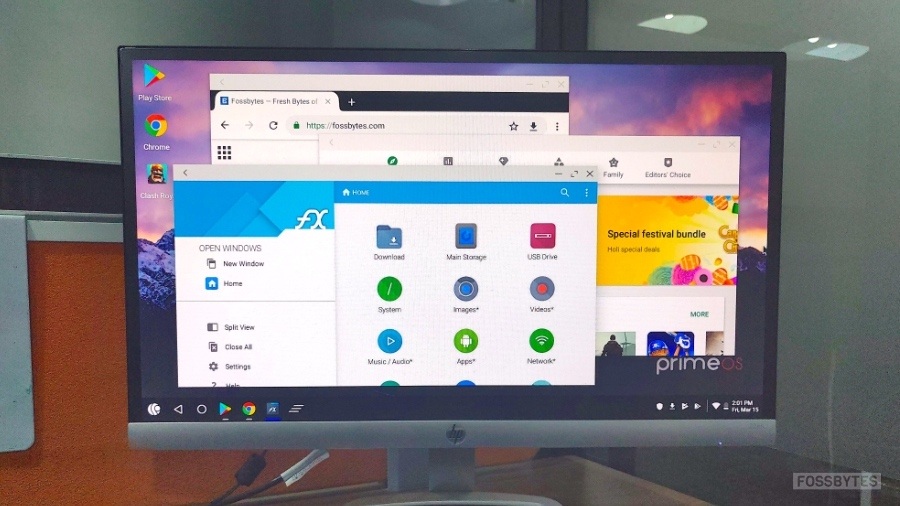
PrimeOS is an Android-based operating system optimized for PCs and laptops. It gives you the look and feel of Windows while running Android apps natively. Think of it as Android reimagined for keyboard + mouse.

Key Highlights:

  • Free and open-source.

  • Familiar desktop UI (taskbar, start menu, windowed apps).

  • Ideal for light productivity, web browsing, and Android gaming.

  • Low hardware requirements (can run on 2GB RAM laptops).


🖥️ PrimeOS vs Windows, Linux, and Android

PrimeOS vs Windows

  • Pros of PrimeOS:

    • Lighter footprint than Windows (runs well on old 2–4 GB RAM laptops).

    • Native access to Android apps and games.

    • No license cost (Windows requires activation).

  • Cons of PrimeOS:

    • Limited app ecosystem for professional productivity compared to Windows.

    • Hardware drivers (Wi-Fi, graphics, touchpads) can sometimes be tricky.

    • Lacks enterprise-grade support.

PrimeOS vs Linux

  • Pros of PrimeOS:

    • Much easier to set up for non-technical users.

    • Native Play Store integration out of the box (Linux requires emulators or workarounds).

  • Cons of PrimeOS:

    • Linux has broader support for programming, servers, and enterprise tools.

    • PrimeOS focuses more on gaming + light tasks.

    • Linux distros (like Ubuntu, Mint) are more future-proof.

PrimeOS vs Android (stock)

  • Pros of PrimeOS:

    • Designed for desktop experience (taskbar, multitasking windows).

    • Better keyboard + mouse support.

    • Easier to use on laptops/PCs than stock Android.

  • Cons of PrimeOS:

    • Not as frequently updated as stock Android.

    • Limited device support compared to phones and tablets.


💡 Why Use PrimeOS on Old Windows 7 Laptops?

  • Breathes new life into aging hardware that struggles with Windows 10/11.

  • Free alternative to buying a new machine or Windows license.

  • Android ecosystem on a laptop: mobile games, educational apps, and social media tools.

  • Good for students with old laptops who just need browsing, YouTube, and basic office apps.


🔧 How to Revive PrimeOS on a Windows 7 Laptop

Step 1: Backup Your Data

  • Save any important files before you begin.

Step 2: Download PrimeOS ISO

  • Official site: https://primeos.in/download

Step 3: Create a Bootable USB

  • Use Rufus (Windows tool) → https://rufus.ie

  • Select PrimeOS ISO → Burn to USB (8GB+ recommended).

Step 4: Boot Into PrimeOS

  • Restart laptop → Enter BIOS/Boot menu (usually F2/F12/ESC depending on model).

  • Choose USB boot.

Step 5: Install or Run Live

  • You can try PrimeOS in Live mode (no install).

  • Or install it alongside Windows 7 (dual boot) or replace Windows completely.

Step 6: Configure PrimeOS

  • Set up Google account.

  • Update apps via Play Store.

  • Install essential apps (Chrome, Office alternatives, games, etc.).


🔗 Useful Links for Troubleshooting and Learning

  • PrimeOS official website: https://primeos.in

  • Installation guide: https://primeos.in/download

  • PrimeOS Reddit community: https://reddit.com/r/PrimeOS

  • Common fixes (Wi-Fi, dual boot, graphics): XDA Forums – PrimeOS

  • Rufus USB creator: https://rufus.ie


💰 Approximate Costs

  • PrimeOS itself → Free.

  • USB drive (if you don’t have one) → $5–$10 (₹400–₹800).

  • External HDD/SSD (optional for dual boot) → $30–$50 (₹2,500–₹4,000).

  • Old laptop upgrades (optional):

    • 4GB RAM stick → $15–$20 (₹1,200–₹1,600).

    • Cheap SSD upgrade → $25–$40 (₹2,000–₹3,200).

👉 In short, you can revive a Windows 7 laptop with almost zero cost, or spend ~$50–$70 (₹4,000–₹6,000) for SSD + RAM upgrades to make it feel like new.


✅ Final Verdict

PrimeOS is a fantastic free solution to extend the life of your old Windows 7 laptop. It won’t completely replace Windows or Linux for professional work, but it’s perfect for students, light users, and Android gamers. With minimal cost and easy setup, it can turn a forgotten machine into a functional daily driver once again.

Got it 👍 — if you’re looking for alternatives to PrimeOS, there are several Android-x86–based operating systems and lightweight OSes designed to revive old PCs and laptops. Each has its own strengths, depending on whether you want an Android-like experience, a lightweight Linux distro, or a Windows-like workflow.


🔄 Alternatives to PrimeOS

1. Bliss OS

  • What it is: Based on Android-x86, built for PCs with multiple optimizations.

  • Features:

    • Supports dual-boot or installation on old laptops.

    • Multiple performance modes for gaming vs productivity.

    • Touchscreen support if your laptop has one.

  • Best for: Users who want latest Android versions on PC.

  • Cost: Free, open-source.

  • 🔗 Learn more


2. Phoenix OS

  • What it is: One of the oldest Android-PC OS, similar to PrimeOS.

  • Features:

    • Desktop-like taskbar and start menu.

    • Good for Android gaming on low-end hardware.

    • Has stopped active development, but older versions still work.

  • Best for: Lightweight gaming and Android apps.

  • Cost: Free.

  • 🔗 Official site (archived)


3. FydeOS (Chromium OS based)

  • What it is: A ChromeOS-like system with Android app support.

  • Features:

    • Runs Android apps alongside web apps.

    • Secure and fast.

    • Regular updates (unlike Phoenix OS).

  • Best for: Users who want a ChromeOS feel with Android support.

  • Cost: Free for personal use.

  • 🔗 FydeOS


4. OpenThos

  • What it is: Android-based OS with Linux kernel integration.

  • Features:

    • Looks more like Windows/Linux than Android.

    • Can run Android + Linux apps side by side.

  • Best for: Developers and power users who need dual-ecosystem features.

  • Cost: Free.

  • 🔗 OpenThos


5. Lightweight Linux Distros (non-Android but revive old laptops)

If you don’t strictly need Android, Linux can make old hardware fly again:

  • Lubuntu → Lightweight Ubuntu with LXQt desktop.

  • Linux Lite → Very easy for Windows users.

  • Zorin OS Lite → Windows-like UI, optimized for older PCs.

🔗 Lubuntu | Linux Lite | Zorin OS


⚖️ PrimeOS vs Alternatives

  • PrimeOS → Great balance of Android apps + PC UI, but updates are rare.

  • Bliss OS → More modern Android versions, active dev.

  • Phoenix OS → Stable but outdated.

  • FydeOS → ChromeOS experience with Android.

  • Linux distros → Faster, more secure, broader app ecosystem (not Android).


💡 Cost Overview:

  • All of the above are free to download and use (open-source or community-driven).

  • Paid cost comes only if you hire help to install/configure (~$20–$50 locally, depending on technician)

Lenovo Laptops for Developers, Small Businesses, and Students: How They Compare to Other Brands

August 24, 2025 by Rajeev Bagra

When shopping for a laptop as a developer, small business owner, or student, the options can feel overwhelming. Lenovo, Dell, HP, and Apple dominate the landscape, each with its own approach to balancing performance, reliability, and software ecosystem. In this post, we’ll explore what makes Lenovo unique—and where it stands compared to other popular brands.


Lenovo’s Unique Edge

1. Lenovo Vantage Software

Unlike many manufacturers that pack in bloated software, Lenovo offers Lenovo Vantage, a genuinely useful pre-installed app.

  • What it does: Manages system updates, diagnostics, battery health, camera/microphone settings, and even offers Wi-Fi security checks.

  • For small businesses: It can scale up with enterprise features like fleet device provisioning and predictive maintenance.

  • For developers/students: It ensures drivers, BIOS, and firmware stay current without manual intervention.

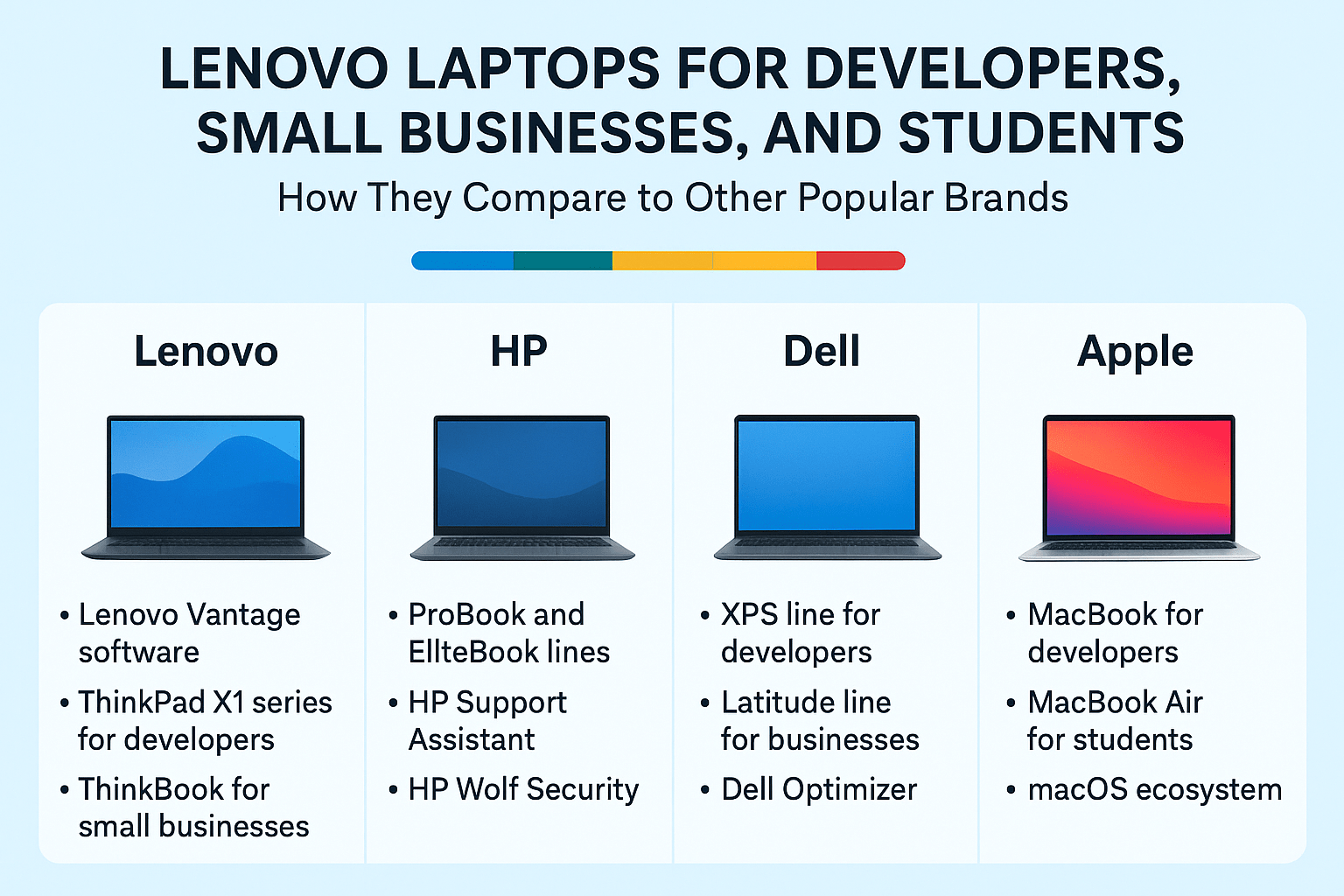
👉 Comparison: Dell has Dell Optimizer, and HP provides HP Support Assistant. Apple, on the other hand, integrates these controls invisibly into macOS—more seamless, but less customizable.


2. Hardware Lines Tailored to Each Audience

  • ThinkBook (Small Businesses): Affordable, durable, and equipped with features like fingerprint readers and webcam shutters.

  • ThinkPad X1 Series (Developers): A premium line with top-tier build quality, high RAM capacity, Linux-friendly design, and long battery life.

  • ThinkPad P Series (Power Users): True mobile workstations with support for heavy tasks like CAD, AI, or 3D rendering.

  • Yoga (Students): Versatile 2-in-1 devices, some powered by Snapdragon X Elite chips for better battery life and AI acceleration.

  • Chromebook Plus 14 (Budget/Students): Bundled with Google AI tools, making it a study-friendly and cost-efficient choice.

👉 Comparison:

  • HP emphasizes its ProBook and EliteBook lines for small businesses, comparable to Lenovo’s ThinkBook.

  • Dell XPS rivals Lenovo’s ThinkPad X1, though XPS leans more toward design and display than rugged durability.

  • Apple MacBooks are excellent for students and developers who want seamless software-hardware integration, but they lack budget-friendly models and enterprise-focused customization.


3. Innovation Factor

Lenovo frequently experiments with bold hardware designs:

  • ThinkBook Plus Rollable: A laptop with a motorized rollable screen that expands from 14″ to 16.7″.

  • Yoga Book 9i: A dual-screen laptop for multitasking, code reviewing, or creative projects.

👉 Comparison: Apple tends to focus on refinement rather than radical hardware changes, while Dell’s Concept Luna and HP’s Spectre line show innovation mainly in sustainability and form factor.


Price and Value Considerations

  • Lenovo: Wide range from affordable refurbished ThinkPads ($400) to premium ThinkPad P1 workstations ($2,500+). Strong value for small businesses that need reliability at scale.

  • Dell: Competitive pricing with the Latitude (business) and XPS (developer) lines, though customizations often raise costs quickly.

  • HP: Known for slightly lower entry pricing but often less durable builds in lower tiers. Their higher-end EliteBooks are solid rivals to ThinkPads.

  • Apple: Premium pricing across the board, but MacBooks maintain resale value better than most PCs. Excellent for creative students and developers, but often out of reach for small business budgets.


Software Ecosystem and Support

  • Lenovo: Lenovo Vantage + Lenovo Pro (business support program). Strong Linux compatibility on ThinkPads.

  • Dell: Dell Optimizer + enterprise IT tools. Excellent for corporate fleet management.

  • HP: HP Wolf Security and HP Support Assistant make their laptops secure and easy to maintain.

  • Apple: macOS ecosystem shines for students and developers in creative/tech fields, but lacks enterprise fleet-level tools compared to PC brands.


Final Thoughts: Which Brand Fits You Best?

  • Developers: Lenovo ThinkPads (X1 or P Series) are excellent thanks to Linux support and rugged performance. Dell XPS is a strong alternative; MacBook Pros work best for those tied into Apple’s ecosystem.

  • Small Businesses: Lenovo’s ThinkBook line strikes the best balance between cost, durability, and security. HP’s ProBooks/EliteBooks are good alternatives, while Dell Latitudes provide more corporate IT features.

  • Students: Lenovo Yoga, Flex, and Chromebook models are versatile and budget-friendly. HP and Dell have solid mid-range options, but Apple’s MacBook Air remains the most student-popular device for long-term use (if budget permits).

👉 The Bottom Line:
Lenovo stands out for its unique Vantage software, Linux-friendly ThinkPads, and innovative designs. However, the “best” laptop depends on your needs—Apple for ecosystem lovers, Dell for premium build and design, HP for affordability, and Lenovo for balanced practicality across segments.


Linux, LinuxONE, IBM Z, and Windows OS: How They Relate and Why They Matter for Programmers

August 24, 2025 by Rajeev Bagra

When learning computer science or preparing for a career in software development, you’ll encounter different operating systems. The most common names include Linux and Windows, but enterprise-grade systems like IBM Z and LinuxONE also play a crucial role in the computing world. Understanding how these systems relate, vary, and complement each other gives you a clearer picture of the OS landscape and helps you make smarter career choices.


🔹 Linux: The Open-Source Workhorse

Linux is an open-source operating system kernel created by Linus Torvalds in 1991. Over the years, it has grown into the foundation of countless distributions such as Ubuntu, Red Hat Enterprise Linux, Debian, and Fedora.

  • Where Linux Dominates:
    Linux powers over 90% of cloud servers, supercomputers, and even Android smartphones.

  • Why Programmers Care:

    • Learn system programming, shell scripting, and networking.

    • Study OS internals by exploring Linux source code.

    • Master DevOps and cloud tools like Docker and Kubernetes.

📘 Learn more: The Linux Foundation Training


🔹 IBM Z: The Mainframe Backbone

IBM Z is IBM’s family of mainframes—high-powered enterprise computers designed for maximum reliability and performance. They act as the backbone of global industries: banks, governments, airlines, and healthcare providers all rely on IBM Z for billions of secure transactions daily.

  • Key Features:

    • 99.999% uptime reliability.

    • Handles millions of transactions per second.

    • Runs both z/OS (proprietary) and Linux on Z.

  • Why Programmers Care:
    Learning IBM Z exposes you to enterprise-grade computing concepts: fault tolerance, massive scalability, and virtualization.
    You also get hands-on experience with COBOL and modern programming stacks side by side.

📘 Learn more: IBM Z Student Hub


🔹 LinuxONE: Linux at Enterprise Scale

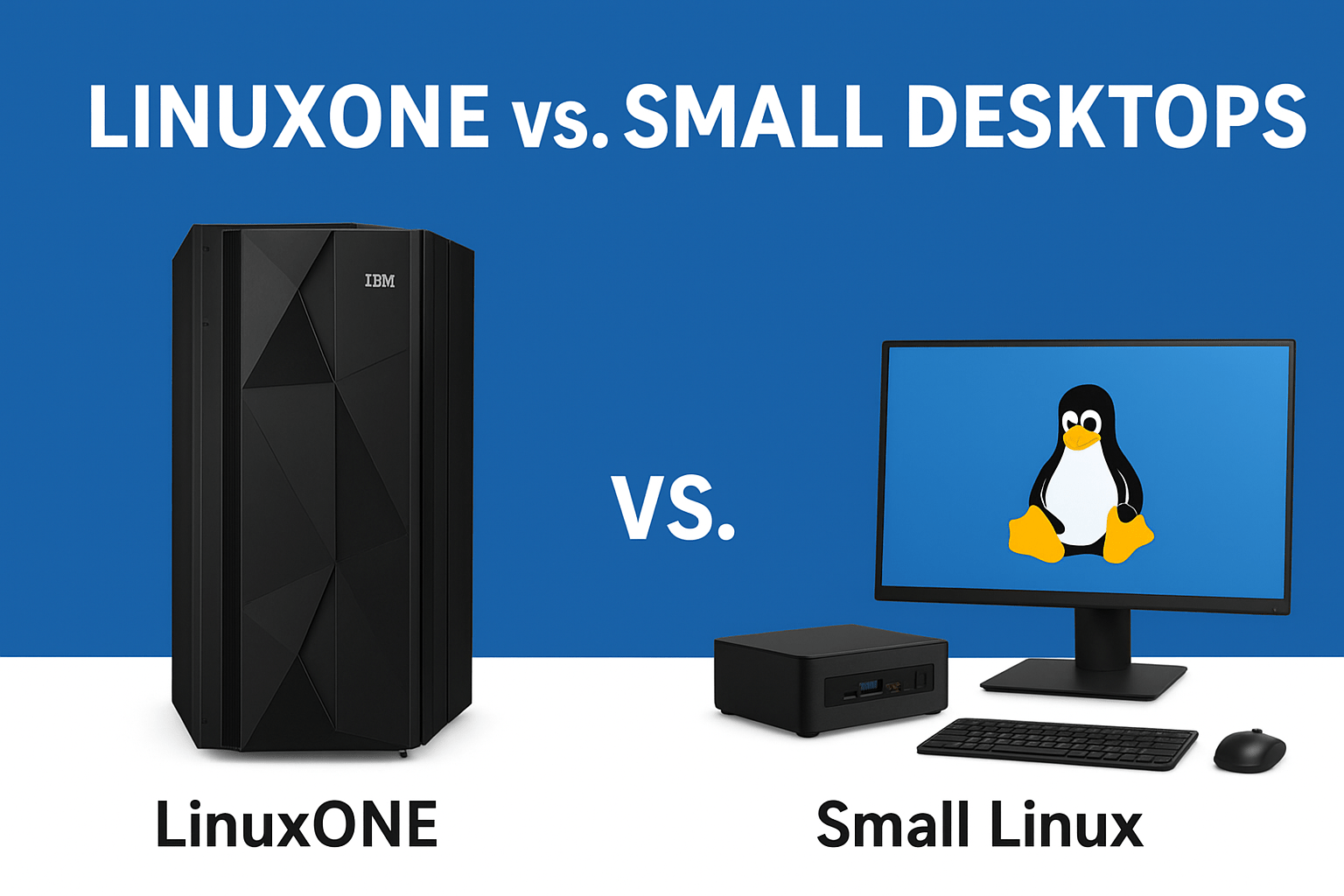
While IBM Z supports both z/OS and Linux, LinuxONE is a specialized system designed to run Linux-only workloads.

  • What It Offers:

    • Optimized for cloud-native apps, fintech, blockchain, and AI workloads.

    • Runs modern Linux distributions like Ubuntu, Red Hat, and SUSE.

    • Built with sustainability in mind (reduced energy footprint).

    • Supports containers and Red Hat OpenShift on mainframes.

  • Why Programmers Care:
    LinuxONE combines the familiarity of Linux with enterprise mainframe power, making it perfect for learning cloud-native development at scale.

📘 Learn more: LinuxONE Overview


🔹 Windows OS: The Desktop Powerhouse

Windows grew to dominate the desktop and enterprise office ecosystem. First released in 1985, Windows is now the default OS for millions of PCs worldwide.

  • Where Windows Dominates:

    • Personal computing (desktops, laptops).

    • Gaming (strong GPU support, DirectX).

    • Corporate IT with Active Directory, Office, and .NET.

  • Why Programmers Care:

    • Strong development ecosystem for C#, .NET, and enterprise tools.

    • Commonly used for Windows Server environments.

    • Ideal if you plan to work within the Microsoft ecosystem.

📘 Learn more: Microsoft Learn – Windows


🔗 How They Relate and Differ

OS / System Type Market Focus Key Strengths
Linux Open-source kernel + distros Servers, cloud, embedded, dev tools Flexibility, transparency, community
Windows Proprietary OS Desktops, enterprise IT, gaming User-friendly, Microsoft ecosystem
IBM Z Mainframe (supports z/OS & Linux) Banking, government, critical apps Reliability, scalability
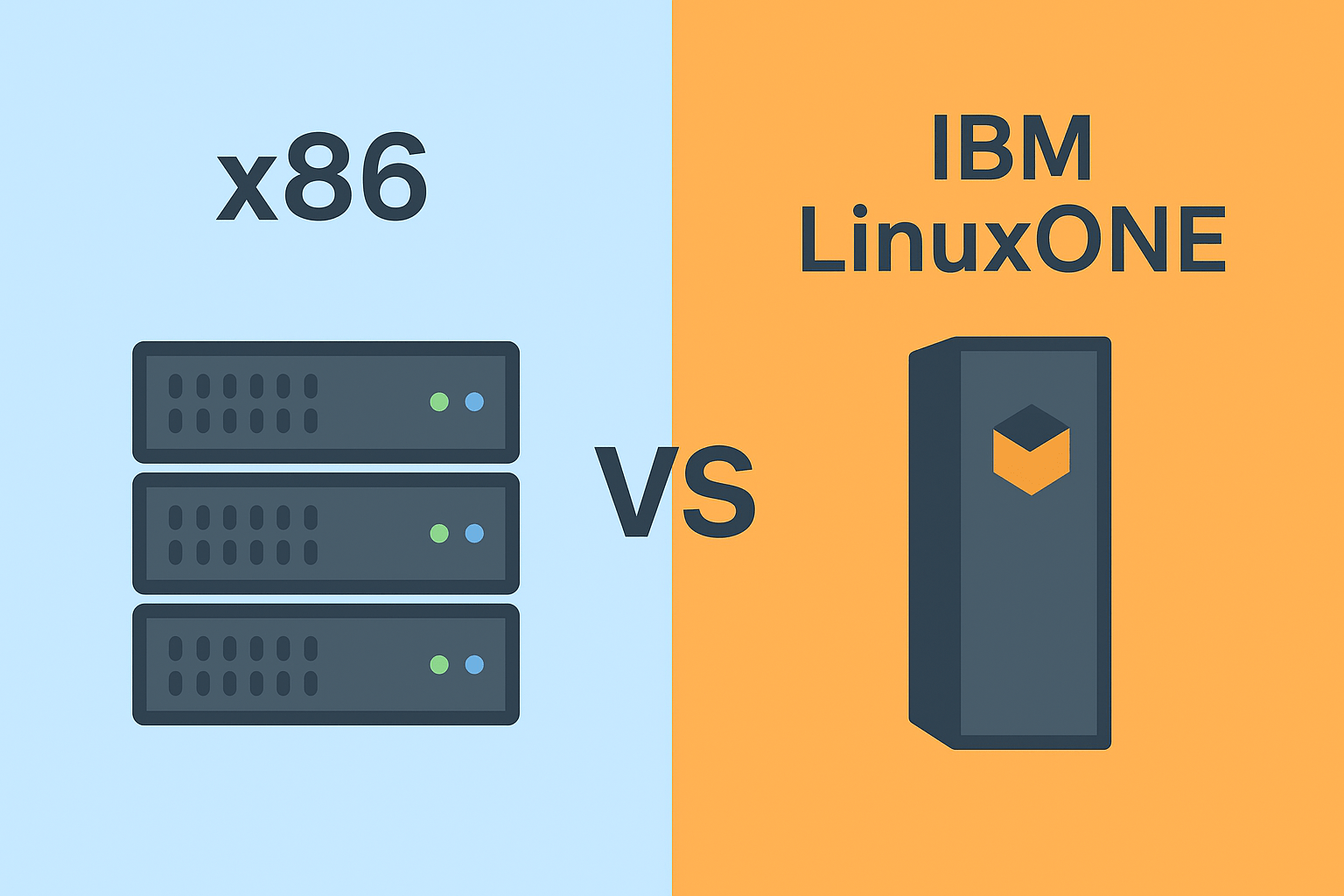
LinuxONE Linux-only mainframe Cloud-native, AI, fintech Enterprise Linux at massive scale

🚀 Why This Matters for CS Learners

  • Linux → The foundation for programming, cloud, and DevOps.

  • Windows → The desktop ecosystem and Microsoft enterprise stack.

  • IBM Z → Teaches enterprise-scale reliability and legacy-modern integration.

  • LinuxONE → Shows how Linux powers critical, modern enterprise workloads.

Together, they represent the entire spectrum of computing—from your personal laptop to the backbone of the global financial system.

By Rajeev Bagra

« Previous Page

Primary Sidebar

Recent Posts

  • GitHub Codespaces vs VS Code: What’s the Difference? (Explained Simply)
  • Hosting a Website From a Personal Computer (Self-Hosting): Is It Possible?
  • Working with HTML & Git on Primebook (PrimeOS / PrimeX) — A Practical Guide
  • There Is No Sharp Line Between Hardware, Software, and the Cloud — It’s All One Continuum
  • Can You Use a Primebook Laptop for MCA DSC Filing?

Archives

  • January 2026
  • December 2025
  • September 2025
  • August 2025

Categories

  • Blog
  • Dell
  • IBM
  • Laptops Lenovo laptops
  • Linux
  • LinuxOne
  • LinuxONE IBM
  • mainframes
  • operating system
  • OS
  • PrimeOS AndroidOS PrimeBook HubSpot Website Builder
  • PrimeOS Operating Systems AndroidOS WindowsOS Linux
  • Windows OS
  • x86 LinuxONE mainframes IBM

Trending (30 days)

  • Working with HTML & Git on Primebook (PrimeOS /… ߎ Who this session is for Learners using Primebook /… (0)
  • Breathe New Life Into Your Old Dell Mini Laptop:… If you still have a Dell mini laptop running Windows… (0)
  • There Is No Sharp Line Between Hardware, Software,… In everyday discussions, we often draw hard boundaries between concepts… (0)
  • GitHub Codespaces vs VS Code: What’s the Difference?… When beginners start learning coding (or even when professionals switch… (0)
  • Hosting a Website From a Personal Computer… At the end of the day, every website—whether it’s on… (0)

Start your hardware journey with clarity.Read Articles

Technzee

This website may use AI tools to assist in content creation. All articles are reviewed, edited, and fact-checked by our team before publishing. We may receive compensation for featuring sponsored products and services or when you click on links on this website. This compensation may influence the placement, presentation, and ranking of products. However, we do not cover all companies or every available product.

  • Home
  • Blog
  • Terms
  • Support
  • Subscribe
  • Contact
Scroll Up