• Skip to primary navigation
  • Skip to main content
  • Skip to primary sidebar
technzee logo

Technzee

reaking Down the Machines That Power Computing

  • Home
  • Blog
  • Terms
    • Privacy
    • Disclaimer
  • Support
  • Subscribe
  • Contact
  • Show Search
Hide Search

Blog

Working with HTML & Git on Primebook (PrimeOS / PrimeX) — A Practical Guide

January 15, 2026 by Rajeev Bagra


Image
Image
Image
Image

ߎ Who this session is for

  • Learners using Primebook / PrimeOS / PrimeX
  • Beginners learning HTML, Git, and basic web development
  • Anyone confused by errors like code: command not found or Git clone issues

ߧ Session Objective

By the end of this session, learners will be able to:

  • Understand what PrimeOS is (and what it is not)
  • Use Git safely without copy-paste errors
  • Edit HTML files using terminal-friendly tools
  • View HTML files correctly in a browser
  • Follow a realistic workflow suited to Primebook users

1️⃣ Understanding Your Environment (Most Important Lesson)

Image
Image
Image

Key Reality Check

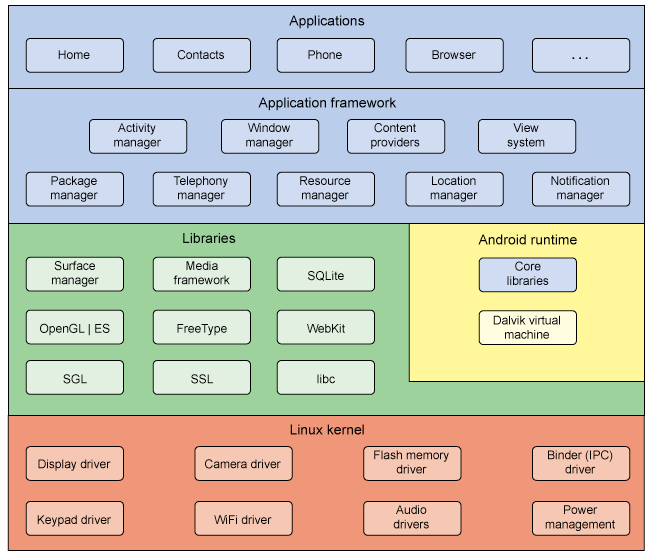
PrimeOS / PrimeX is:

  • ✅ Android-based
  • ✅ Has a Linux-like terminal
  • ❌ NOT Ubuntu
  • ❌ NOT Windows
  • ❌ NOT AWS / cloud server

ߑ That’s why commands like this fail:

code test.html
sudo apt install code

And that’s normal, not your fault.


2️⃣ Git Basics on Primebook (Common Pitfalls & Fixes)

Image
Image
Image

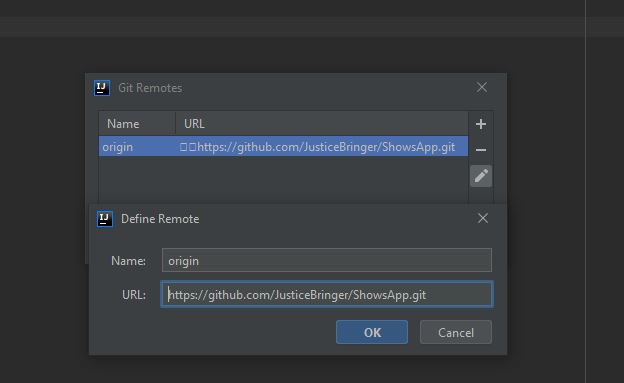
❌ Common Error

fatal: protocol '?[200~https' is not supported

Why it happens

  • Copy-pasting GitHub URLs adds hidden characters
  • Terminal interprets them as invalid protocols

✅ Best Practice

Always type Git commands manually:

git clone https://github.com/USERNAME/REPOSITORY.git

3️⃣ Creating & Editing an HTML File (The Right Way)

Image
Image
Image

Create a file

touch test.html

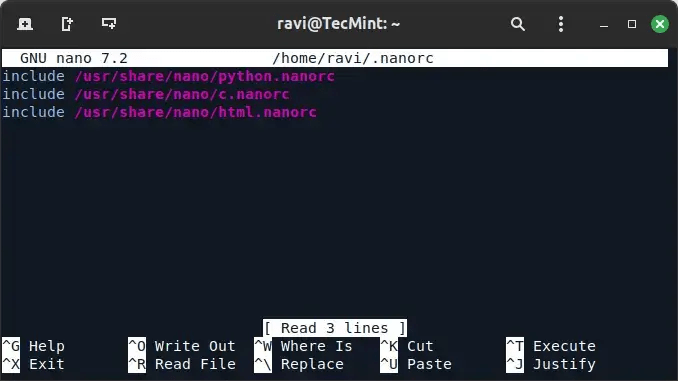
Edit using Nano (recommended)

nano test.html

Example content:

<!DOCTYPE html>
<html>
  <head>
    <title>My First Primebook Page</title>
  </head>
  <body>
    <h1>Hello from Primebook</h1>
  </body>
</html>

Save: Ctrl + O → Enter
Exit: Ctrl + X


4️⃣ Viewing the HTML File in a Browser

Image
Image
Image

✅ Method 1: Terminal

xdg-open test.html

✅ Method 2: Browser (Guaranteed)

Open Chrome and type:

file:///home/USERNAME/test/test.html

✅ Method 3: File Manager

  • Go to Home → test
  • Double-click test.html
  • Open with Chrome

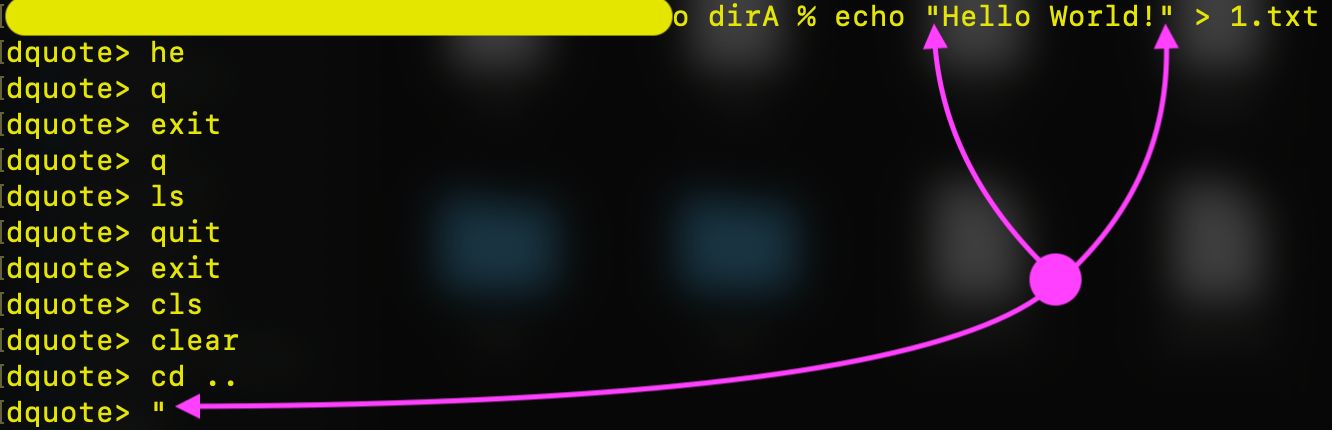
5️⃣ When the Terminal Shows > (Hidden Lesson)
Image
Image

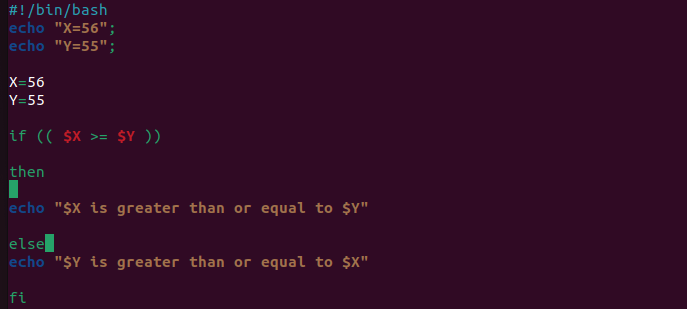
If you ever see:

>

It means:

  • You started a quote (' or ")
  • Bash is waiting for you to finish

Fix instantly:

Ctrl + C

6️⃣ Recommended Workflow for Primebook Users
Image
Image
Image

ߟ Best Long-Term Workflow

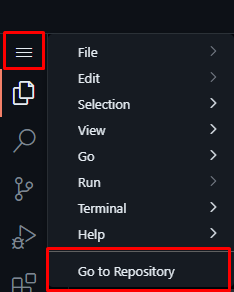
  1. Edit files using GitHub’s browser editor
  • Open repo on GitHub
  • Press . (dot) → VS Code opens in browser
  1. Commit & push online
  2. Sync locally:
git pull origin main

ߟ Use Nano

  • For quick fixes
  • For learning terminal basics

7️⃣ What Learners Should NOT Worry About

❌ “Why VS Code doesn’t install”
❌ “Why apt doesn’t work”
❌ “Why PrimeOS is different”

ߑ These are platform limits, not skill gaps.


ߧ Session Summary (Key Takeaways)

  • PrimeOS ≠ Ubuntu ≠ Windows
  • Git works well, but copy-paste carefully
  • Nano is your best editor locally
  • HTML files open via file:// in Chrome
  • Browser-based editors are powerful and valid


There Is No Sharp Line Between Hardware, Software, and the Cloud — It’s All One Continuum

December 14, 2025 by Rajeev Bagra

Image
Image
Image
Image
Image

In everyday discussions, we often draw hard boundaries between concepts like hardware vs software, desktop applications vs web applications, or local PCs vs cloud platforms like AWS. But in reality, these boundaries are more conceptual conveniences than technical truths.

At a deeper level, the same information technology principles power everything—from Microsoft Office running on your personal computer to a website served from a global cloud infrastructure.

Let’s unpack this idea.


1. Hardware and Software: Two Sides of the Same Coin

We are taught early on:

  • Hardware → physical components (CPU, RAM, storage)
  • Software → programs and instructions

This distinction is useful for learning—but not absolute.

Why the line is blurry:

  • Software only exists because hardware executes it
  • Hardware is useless without software telling it what to do
  • Firmware (BIOS, microcode) sits directly in between

At the lowest level:

  • Software becomes binary instructions
  • Hardware becomes logic gates reacting to electrical signals

👉 From this perspective, software is abstracted hardware, and hardware is concretized software.


2. MS Office vs Web Applications: Same Logic, Different Delivery

There is no thin line of difference between web development and how we access MS Office or similar office documentation software.

That observation is fundamentally correct.

Consider this comparison:

MS Office (Local)Google Docs / Web Apps
Runs on local CPURuns on remote CPU
Uses local RAMUses cloud RAM
Stores files locallyStores files remotely
UI rendered locallyUI rendered locally

What’s common?

  • The browser itself is software
  • Rendering happens on your device
  • User interaction logic is identical

The difference is where computation and storage happen, not how computing works.


3. Your PC vs AWS: Scale, Not Substance

A powerful insight is this:

It is the same IT technology that works on a small PC and on AWS.

Yes—AWS is not magic. It is:

  • CPUs
  • RAM
  • Storage
  • Networking
  • Operating systems
  • Virtualization layers

The only difference is scale and abstraction.

Think of AWS as:

  • A massive distributed computer
  • Your PC is a small standalone computer
  • Both execute instructions
  • Both process data
  • Both obey the same laws of computation

Cloud computing doesn’t replace local computing—it extends it.


4. The Browser: The Great Equalizer

Modern browsers have quietly erased many traditional distinctions.

A browser today can:

  • Run full applications
  • Edit documents
  • Compile code
  • Stream video
  • Host development environments

In effect:

The browser has become a universal operating system interface.

Whether the backend lives:

  • On your laptop
  • On a server in your city
  • On AWS across continents

…the user experience often feels the same.


5. Abstraction Layers: The Real Story of IT Evolution

The real evolution in computing is not replacement, but abstraction.

Each layer builds on the previous one:

  1. Transistors
  2. Logic gates
  3. Machine code
  4. Operating systems
  5. Applications
  6. Web applications
  7. Cloud platforms

None of these eliminate the earlier layers—they depend on them.

That’s why:

  • Web apps still need CPUs
  • Cloud still runs on physical servers
  • Software always ends as hardware instructions

6. Why This Perspective Matters

Understanding this continuum helps you:

  • Learn technologies faster
  • See through hype cycles
  • Make better architectural decisions
  • Avoid false dichotomies (local vs cloud, hardware vs software)

It also explains why skills transfer:

  • A developer who understands systems adapts easily
  • Concepts like memory, processes, and I/O never disappear
  • Only interfaces and abstractions change

Final Thought: One Technology, Many Faces

There isn’t a rigid line between:

  • Hardware and software
  • Desktop apps and web apps
  • Local machines and cloud platforms

There is only one computing reality, expressed at different levels of abstraction.

From a small PC on your desk to a globally distributed cloud service, the same foundational principles apply—only the scale, reach, and abstraction differ.

And recognizing this unity is a sign of truly understanding how modern computing works.

Can You Use a Primebook Laptop for MCA DSC Filing?

September 24, 2025 by Rajeev Bagra

Every company in India has to stay compliant with the Ministry of Corporate Affairs (MCA) by filing annual returns, financial statements, and other statutory documents. These filings require authentication through a Digital Signature Certificate (DSC).

If you own a Primebook laptop and are wondering whether you can complete your yearly MCA compliance on it, here’s what you need to know.


What You Need for MCA DSC Filing

To sign and upload MCA forms digitally, you must have:

  • A valid DSC USB Token issued by a Certifying Authority like eMudhra, Sify, or Capricorn.

  • DSC Token Drivers, provided by the vendor.

  • Java Runtime Environment (JRE), since MCA’s signing process relies on Java.

  • A compatible browser (Internet Explorer for legacy forms, or Chrome/Edge with emSigner for newer ones).

  • The emSigner Utility installed and running in the background.


The Primebook Limitation

Here’s the catch:

  • Primebook runs on PrimeOS, which is based on Android, not Windows or macOS.

  • MCA utilities like Java, emSigner, and token drivers are only available for Windows and macOS.

  • That means you cannot directly use a Primebook laptop to digitally sign MCA forms.


Workarounds and Alternatives

If you’re using a Primebook, here are your options:

  1. Use a Windows or Mac System
    The most straightforward solution. Install the DSC drivers, Java, and emSigner, and file your forms without issues.

  2. Dual Boot with Windows (if supported)
    Some Primebook models may support dual boot with Windows. If so, you can install Windows alongside PrimeOS and switch when you need MCA filing.

  3. Use Another System Temporarily
    Borrow or rent a Windows/Mac computer just for MCA filing.

  4. Hire a Professional
    Chartered Accountants (CAs) and Company Secretaries (CS) routinely handle MCA compliance. You can provide your DSC and have them file on your behalf.


Conclusion

While the Primebook is great for everyday productivity and learning, it’s not suited for MCA DSC filing because the required utilities don’t support PrimeOS. To stay compliant, you’ll need to switch to a Windows or Mac device for signing and uploading MCA forms.

👉 If you run a company, make sure you arrange access to such a system well in advance of your filing deadlines to avoid last-minute stress.

Here’s an updated version of your blog with a new “Recommended Devices” section. You can plug this in toward the end of your post (just before conclusion).


Recommended Devices for Seamless MCA DSC Filing

To ensure your MCA annual compliance and DSC signing go smoothly, here are a few Dell and Lenovo Windows-based devices that are well suited for this work. These machines support all required software (Java, emSigner, token drivers) and offer the stability and ports needed for digital signatures.

Note: These are suggestions. Always verify compatibility with your DSC token vendor and check driver support for your region.

✅ Dell Options (Laptops & Desktops)

Here are some Dell devices you can consider:

  • Dell Inspiron 5430 — A compact 14″ laptop with Intel Core i5-1335U, SSD, and Windows 11. Good for portability plus power for MCA filing tasks.

  • Dell Inspiron 15 3530 — Slightly larger 15.6″ screen, decent all-rounder for daily use and compliance work.

  • Dell Vostro 3710 — A business-oriented laptop with Windows 11, ideal for small companies or professionals.

  • Dell Vostro 16 5630 — A 16″ variant that gives more screen real estate — useful if you often work with multiple document windows.

Dell also has good business-line models like the Latitude series and OptiPlex desktops. You can check them out on Dell India’s official site. (Dell)


🖥️ Lenovo Options (Desktops / All-in-Ones / Tower PCs)

For those who prefer a desktop or all-in-one setup, Lenovo has solid offerings:

  • Lenovo IdeaCentre Tower (14ᵗʰ Gen) — A tower desktop with full upgradability (RAM, storage) and Windows ready for compliance tasks.

  • Lenovo ThinkCentre Neo 50a AIO — All-in-One form factor (screen + PC in one), reducing cable clutter.

  • Lenovo ThinkCentre M75q Gen 5 — A compact mini desktop (small footprint) that still packs performance.

Lenovo’s ThinkCentre lineup is designed for business use and tends to offer reliable support and long product life. (Lenovo)


🧭 What to Look for When Choosing

When selecting a device for DSC filing and MCA compliance, keep these in mind:

Feature Recommended Spec
Processor (CPU) Modern Intel Core i3/i5 or AMD Ryzen 3/5 or better
RAM Minimum 8 GB (16 GB preferred)
Storage SSD (256 GB or more) for speed and reliability
Operating System Windows 10 or Windows 11 (64-bit)
Ports At least one USB-A port (for DSC token), plus extra ports for peripherals
Support & Drivers The manufacturer should provide driver updates and support for your region
Expansion / Upgradability Easy access to add more RAM, storage, etc.

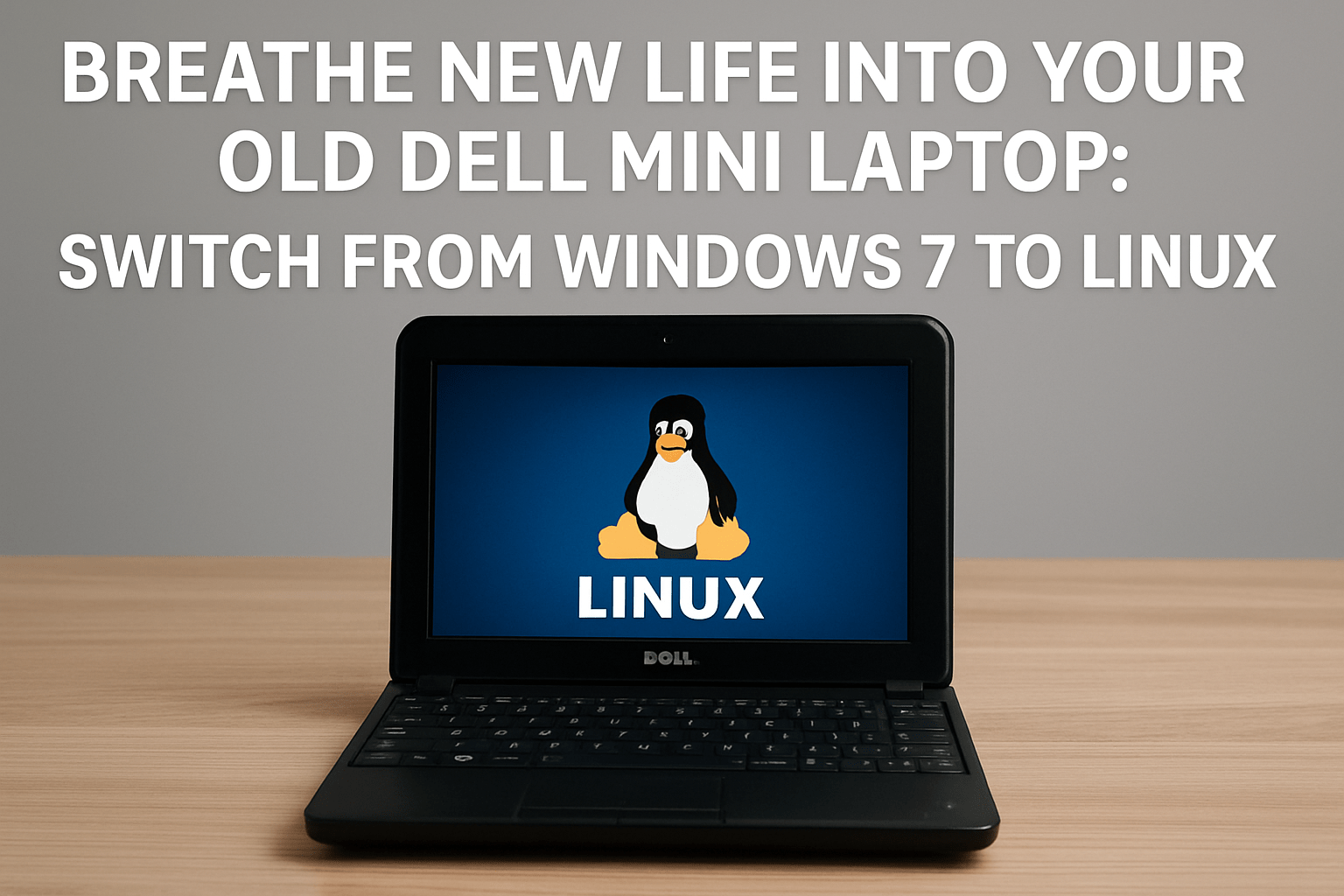
Breathe New Life Into Your Old Dell Mini Laptop: Switch from Windows 7 to Linux

September 9, 2025 by Rajeev Bagra

If you still have a Dell mini laptop running Windows 7, you’ve probably noticed that it feels outdated and insecure. Since Microsoft ended support for Windows 7, the system no longer gets updates, leaving you exposed to security risks. But instead of throwing the laptop away, you can switch to Linux, a free and open-source operating system that will keep your device useful for years to come.


Why Linux?

  • Still supported: Modern Linux distributions (distros) are updated regularly.

  • Lightweight options: Perfect for older laptops with 1–2 GB RAM.

  • Free software: Includes browsers, office tools, coding environments, and multimedia players.

  • Secure by design: No need to worry about viruses in the same way as on Windows.


Best Linux Options for Old Laptops

Here’s a quick comparison of some great Linux distros for older machines like Dell mini laptops:

Distro Minimum RAM Ease of Use Look & Feel Best For Download
Linux Mint XFCE 1 GB (2 GB recommended) ⭐⭐⭐⭐ Modern, Windows-like Beginners Download
Lubuntu (LXQt) 1 GB ⭐⭐⭐⭐ Clean & light Beginners and daily use Download
Peppermint OS 1 GB ⭐⭐⭐ Cloud + local hybrid Web browsing, light tasks Download
antiX 256 MB ⭐⭐ Very minimal Very old hardware Download
Puppy Linux 256 MB ⭐⭐ Basic but fast Extreme lightweight use Download

How to Install Linux

  1. Download the ISO file of the Linux distro you want.

  2. Create a bootable USB drive using a tool like Rufus (Windows) or Balena Etcher (cross-platform).

  3. Boot your Dell mini laptop from USB (change boot order in BIOS if needed).

  4. Try Linux live session first (runs without installing).

  5. Install to hard drive when ready.

Step-by-step guides:

  • How to Install Linux Mint

  • Ubuntu Desktop Installation Guide


Dual-Boot Option: Keep Windows 7 Alongside Linux

Not ready to say goodbye to Windows 7? You can dual-boot:

  • Linux installs alongside Windows without erasing it.

  • At startup, you’ll get a menu (called GRUB bootloader) to choose between Windows or Linux.

  • This is useful if you want to use Linux for secure web browsing and documents, but keep Windows 7 for older offline programs.

How to Set Up Dual-Boot

  1. Backup your data first — always important.

  2. During Linux installation, choose “Install alongside Windows” (option available in most installers like Mint or Ubuntu).

  3. The installer will automatically resize your Windows partition and create space for Linux.

  4. Restart, and you’ll see the boot menu with both systems.

Guide: Dual-Boot Ubuntu and Windows

⚠️ Note: Since Windows 7 is unsupported, you should avoid using it online. Keep it for offline tasks only. Use Linux as your main secure system.


Final Thoughts

Switching to Linux will keep your old Dell mini laptop secure, updated, and surprisingly useful for web browsing, documents, emails, and coding. You can choose to replace Windows 7 completely for maximum speed and safety, or set up a dual-boot system if you want the flexibility of keeping Windows for offline use.

Instead of retiring the machine, you’ll have a lightweight, modern system that works smoothly without the baggage of outdated Windows software.

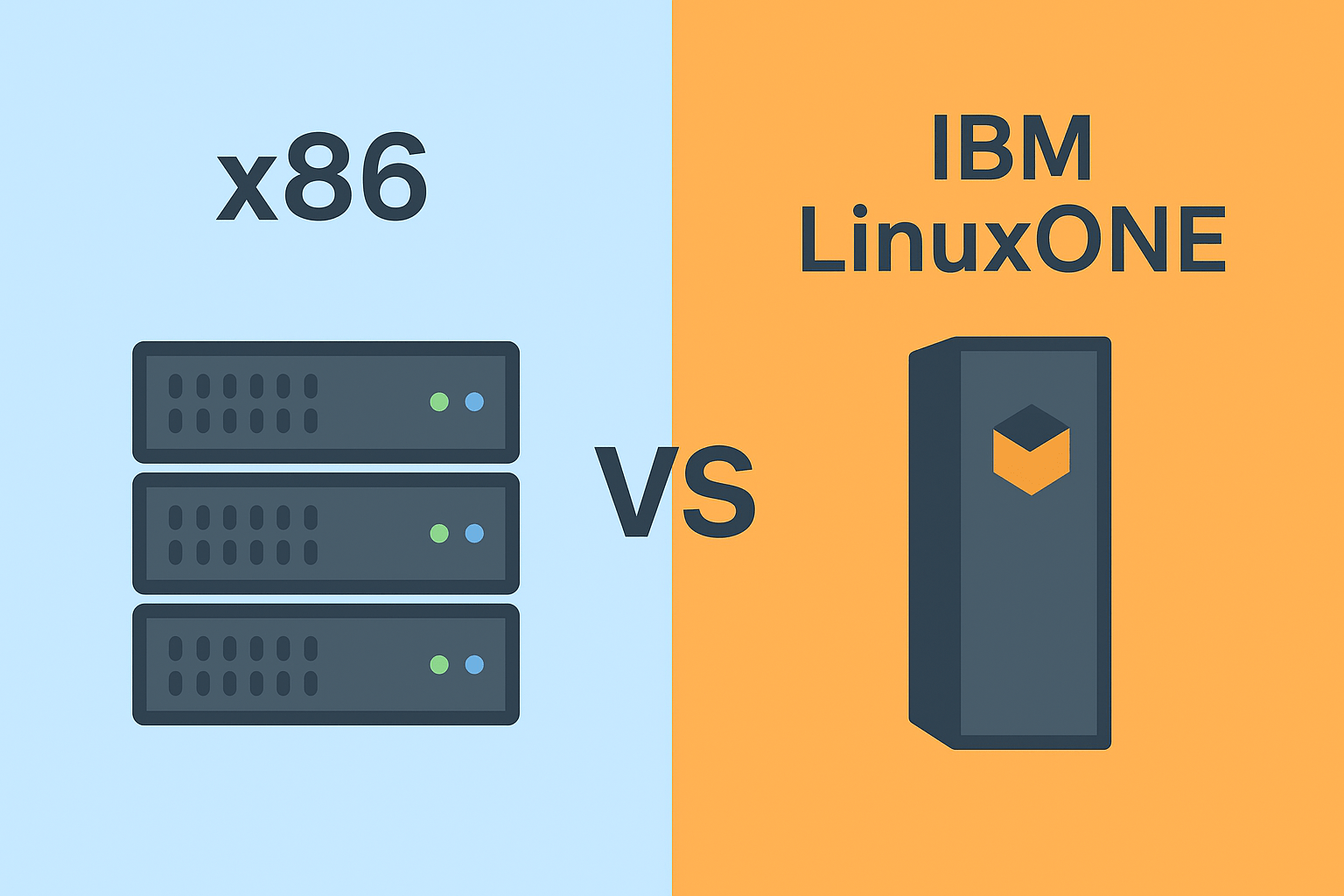
x86 vs LinuxONE: An Impartial Comparison with Real Cost Insights

August 28, 2025 by Rajeev Bagra

When evaluating enterprise computing infrastructure, two key contenders often come up: x86-based servers and IBM LinuxONE mainframes. Both have strengths and weaknesses depending on workload types, scalability requirements, and total cost of ownership.


1. Overview of x86 Servers

  • Technology: Built on Intel and AMD x86 architecture.

  • Use Cases: General-purpose workloads, web hosting, enterprise applications, virtualization.

  • Strengths: Affordable entry costs, wide vendor availability (Dell, HPE, Lenovo, Supermicro).

  • Weaknesses: May struggle with extreme scalability, high consolidation, and always-on mission-critical workloads.

🔗 Learn more: Intel Xeon Scalable Processors


2. Overview of IBM LinuxONE

  • Technology: IBM’s enterprise-grade mainframe optimized for Linux workloads.

  • Use Cases: High-security environments, large-scale databases, fintech, and industries requiring 24/7 uptime.

  • Strengths: Extreme scalability, integrated security features (confidential computing, encryption), very high reliability.

  • Weaknesses: Higher initial investment, specialized skill requirements.

🔗 Learn more: IBM LinuxONE


3. Cost Estimates

  • x86 Servers: Entry-level rack servers (e.g., Dell PowerEdge, HPE ProLiant) start at $3,000 – $10,000 per unit. Large enterprise clusters with networking and storage can reach $200,000+.

  • IBM LinuxONE: Pricing varies based on configuration. A single LinuxONE Rockhopper (entry-level) may cost $135,000+, while high-end LinuxONE Emperor models can go into millions of dollars depending on workload.

💡 Note: IBM also offers LinuxONE as-a-service on IBM Cloud, which can reduce upfront investment.

🔗 Learn more: LinuxONE on IBM Cloud


4. Performance & Scalability

  • x86: Scales horizontally (adding more servers). Great for distributed systems, Kubernetes, and microservices.

  • LinuxONE: Scales vertically (massive workloads on fewer machines). Ideal for database consolidation, fintech, and AI-driven analytics.


5. Total Cost of Ownership (TCO)

  • x86: Lower entry costs, but higher long-term energy, cooling, and administration expenses when scaled massively.

  • LinuxONE: High initial investment, but lower operational costs due to consolidation, security, and reduced downtime.


6. Which One to Choose?

  • Choose x86 if: You want lower upfront costs, flexibility, and have workloads that are not mission-critical.

  • Choose LinuxONE if: You handle sensitive data, need 24/7 uptime, and want long-term efficiency at scale.


Final Thoughts

Both x86 and LinuxONE have their place in enterprise IT. The decision depends on whether your organization values lower entry cost and flexibility (x86) or extreme security and scalability (LinuxONE).

🔗 Related Resources:

  • Dell PowerEdge Servers

  • HPE ProLiant Servers

  • IBM LinuxONE Family

  • IBM Cloud LinuxONE

Understanding IBM LinuxONE Variants: Value Propositions, Costs, and Cloud Comparisons

August 28, 2025 by Rajeev Bagra

Introduction

IBM LinuxONE is a specialized family of enterprise-class mainframes optimized for Linux workloads. It offers exceptional performance, security, and efficiency, appealing to organizations with mission-critical applications. With variants tailored for large enterprises as well as SMEs, LinuxONE provides flexible deployment and pricing options. But how does it compare with public cloud offerings? Let’s explore.


LinuxONE Variants and Their Value Propositions

1. LinuxONE III Express

  • Target: Small and mid-sized enterprises.
  • Key Benefits:
    • Up to 2× performance over x86 for open-source workloads.
    • Built-in resilience and security.
    • Flexible elastic pricing models (pay-per-core, rental).
  • Use Cases: Financial services, data-intensive startups, and hybrid-cloud environments.

2. LinuxONE 4 Family

Variants include Emperor 4 (multi-frame), Rockhopper 4 (single-frame), and 4 Express (pre-configured for SMEs).

  • Highlights:
    • Powered by Telum processor with built-in AI accelerators.
    • Energy efficiency: up to 75% less power consumption than x86 equivalents.
    • 52% lower TCO over five years for SMEs.
    • Pre-configured Express model simplifies deployment.

3. LinuxONE 5 (2025 Onward)

  • Processor: Telum II with enhanced AI inferencing capabilities.
  • Focus Areas:
    • Quantum-safe encryption.
    • Confidential computing.
    • AI acceleration for real-time workloads (e.g., fraud detection, risk analysis).
  • Scalability: Designed for seamless expansion with fewer overheads.

Cost Estimates

  • LinuxONE 4: Hardware base pricing starts at around $135,000 (excluding software/services).
  • TCO Advantage: IBM claims 50–60% cost savings over five years compared to equivalent x86 setups due to energy, space, and consolidation efficiencies.
  • Elastic Pricing: Rent-per-core or pay-per-use models bring cloud-like flexibility on-prem.
  • LinuxONE 5: Pricing not yet public, but expected to be premium-tier with focus on AI and security.

LinuxONE vs. Cloud Offerings

Feature LinuxONE Mainframes Cloud (e.g., IBM Cloud, AWS, Azure)
Security Industry-leading encryption, confidential containers Strong, but hardware is shared infrastructure
Performance High consolidation, AI-optimized with Telum processors Flexible, depends on chosen instance types
Cost Model High upfront or rental-based, lower long-term TCO OPEX-friendly, scales easily but can add up
Scalability Large, but manual expansion Instant, global scalability
Hybrid Cloud Tight Red Hat OpenShift integration, strong resilience Native cloud services integration

Final Takeaways

  • LinuxONE is ideal for organizations demanding ultra-high availability, strong compliance, and workload consolidation. It’s particularly attractive in finance, government, and mission-critical sectors.
  • Cloud offerings shine in flexibility, global scalability, and lower upfront investment.
  • Many enterprises adopt a hybrid approach — running sensitive workloads on LinuxONE while leveraging the public cloud for less regulated, elastic workloads.

For more details, check the official pages:

  • LinuxONE 4
  • LinuxONE 5

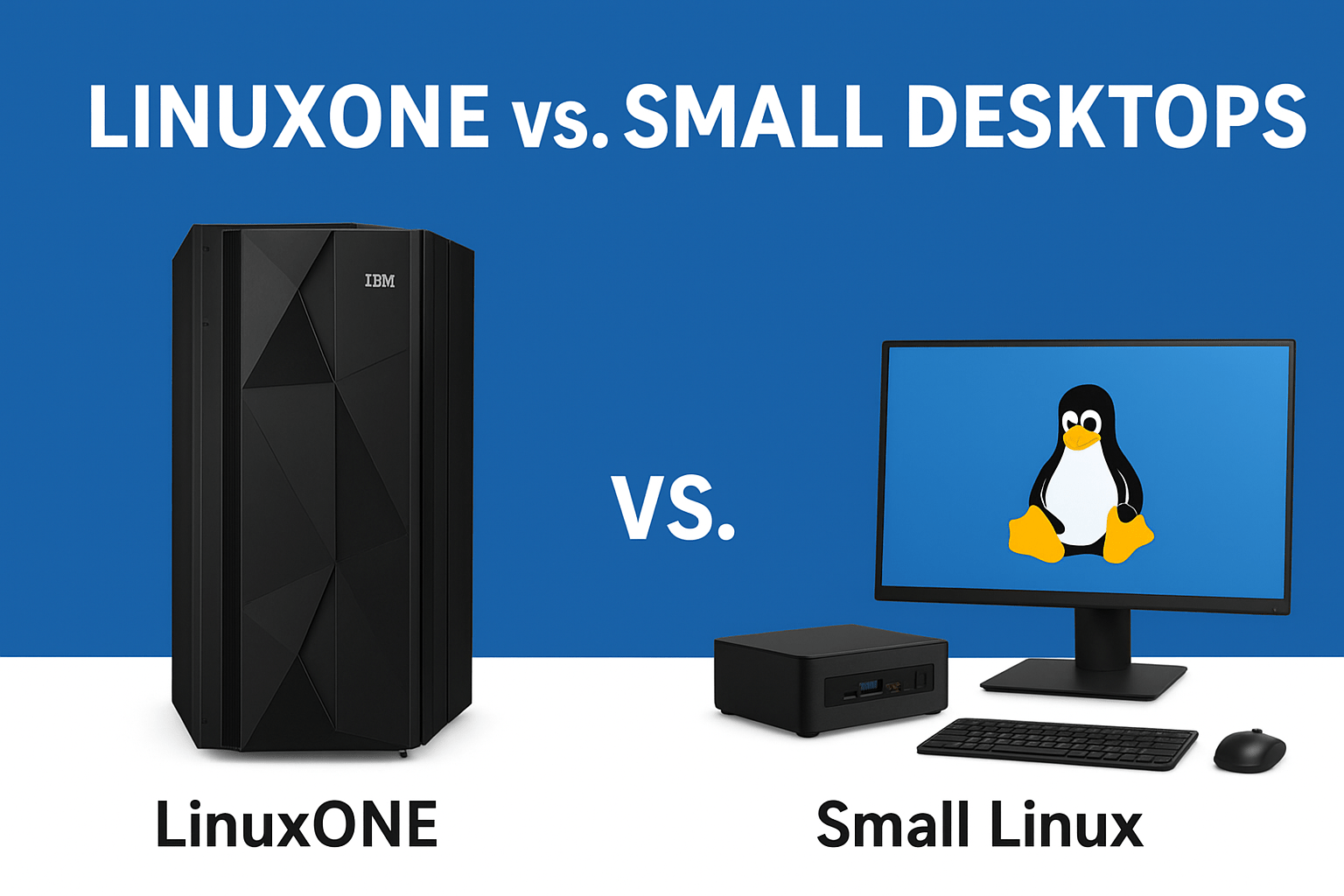
LinuxONE vs. Small Desktops: What’s Really Viable?

August 27, 2025 by Rajeev Bagra

When people hear about LinuxONE, they might assume it’s just another version of Linux that can run on small desktops or laptops. But that’s not the case. IBM LinuxONE is an enterprise-grade, mainframe-class system, designed for mission-critical workloads—far beyond the needs of a personal desktop.

So, if you’re searching for a compact, affordable Linux desktop, LinuxONE is not the answer. Let’s break down why, and then explore real options for small Linux desktops.


What Is LinuxONE?

LinuxONE is a family of enterprise servers by IBM. Unlike traditional x86 servers or desktops, LinuxONE is:

  • Built for enterprises needing extremely high uptime and throughput.

  • Optimized for Linux workloads at scale (banks, healthcare, governments, etc.).

  • Designed for consolidation—a single core can often replace 10–12 x86 cores.

  • Expensive and large—even the “entry-level” LinuxONE 4 Express packs 16 cores and 1TB memory.

👉 Bottom line: LinuxONE is overkill for desktops. It’s powerful, but it belongs in data centers, not on your desk.


Real Options for Small Linux Desktops

If you want a compact, efficient Linux desktop, here are the viable alternatives:


🔹 1. Mini PCs (NUCs and Similar)

  • Examples: Intel NUC, Beelink Mini PCs, Zotac ZBOX

  • Why choose: Small form factor, low power usage, quiet, reliable.

  • Best for: Developers, office work, coding, browsing, and lightweight server tasks.


🔹 2. Raspberry Pi & Other SBCs

  • Examples: Raspberry Pi 5, ODROID, RockPro64

  • Why choose: Affordable, tiny footprint, highly customizable.

  • Best for: Experimentation, learning Linux, IoT projects, ultra-light desktops.


🔹 3. Refurbished Micro Desktops

  • Examples: Dell OptiPlex Micro, HP EliteDesk Mini, Lenovo ThinkCentre Tiny

  • Why choose: Business-grade reliability, affordable second-hand, Linux-friendly.

  • Best for: Budget-friendly Linux desktop setups with solid performance.


🔹 4. Laptops as Desktops

  • Use an old laptop with an external monitor, keyboard, and mouse.

  • Saves space, reduces costs, and still gives portability.

  • Install Ubuntu, Linux Mint, or Fedora.


🔹 5. Custom Small Form Factor PCs

  • Build with Mini-ITX motherboards and compact cases like the Cooler Master NR200.

  • More powerful than NUCs, with space for upgrades.

  • Best for: Power users who want gaming + Linux development workstation in a small case.


Comparison Table: LinuxONE vs. Small Linux Desktops

Feature / Option LinuxONE (Mainframe) Mini PC (NUC, Beelink) Raspberry Pi / SBC Refurbished Micro Desktop Mini-ITX Custom Build
Size Rack/Mainframe Palm-sized box Credit-card sized Small desktop box Compact case
Cost $$$$$ (Enterprise) $$–$$$ $ $–$$ $$–$$$$
Use Case Enterprise workloads Coding, office, dev Learning, IoT, DIY Affordable home desktop High-performance dev
Power Consumption High Low Very Low Low–Moderate Moderate–High
Best For Banks, governments Small business, devs Hobbyists, makers Students, freelancers Power users, gamers

Final Thoughts

LinuxONE is not meant for small desktops. It’s a mainframe-level solution for enterprises.

If you want a viable small Linux desktop, consider:

  • Mini PCs (Intel NUC, Beelink) for balance of size and performance.

  • Raspberry Pi or SBCs for low-cost experimentation.

  • Refurbished Micro Desktops for affordable, reliable everyday use.

  • Mini-ITX builds if you need serious power in a compact form.

👉 Whether you’re a student, developer, or small business owner, there’s a Linux desktop option that fits your budget, space, and performance needs.


Can You Use HubSpot’s Drag-and-Drop Website Builder on PrimeOS (Primebook)?

August 26, 2025 by Rajeev Bagra

If you’ve recently bought a Primebook running PrimeOS (also called PtimeOS) and are exploring whether you can use HubSpot’s drag-and-drop website builder on it, you’re not alone. Many students, freelancers, and small business owners in India are turning to Primebook laptops as a budget-friendly option, but want to know whether advanced tools like HubSpot’s CMS Hub will run smoothly.

Let’s break it down.


What is PrimeOS (PtimeOS)?

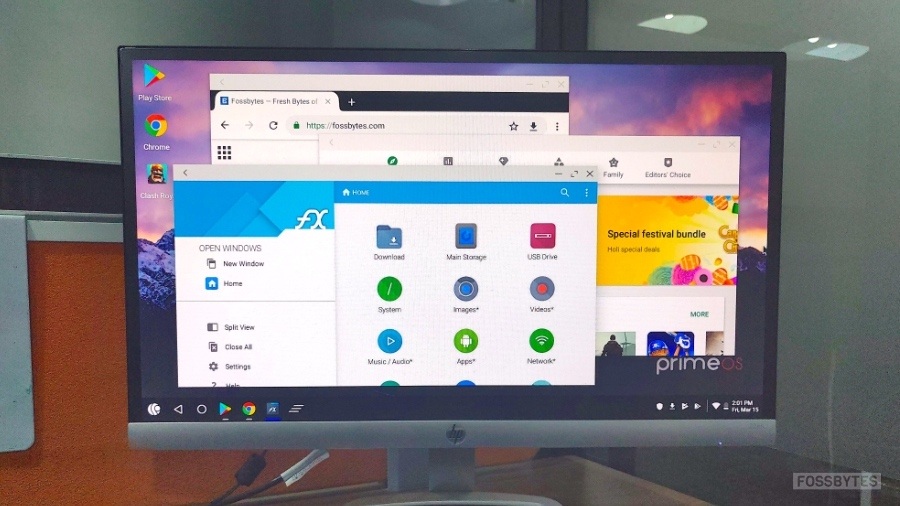
PrimeOS is an Android-based operating system designed to bring a mobile-like experience to laptops. Instead of Windows or Linux, Primebooks run this lightweight OS, allowing users to install Android apps and run browsers in a familiar desktop interface.


What HubSpot Requires

HubSpot’s drag-and-drop website builder is part of its CMS Hub. According to HubSpot’s documentation, the builder works best on modern desktop browsers, including:

  • Google Chrome (latest version)

  • Mozilla Firefox (latest version)

  • Microsoft Edge (latest version)

  • Safari (for macOS users)

Mobile browsers and non-standard setups are not officially supported. That means while you may be able to access the builder on other platforms, HubSpot won’t guarantee performance or stability.


Will HubSpot Work on PrimeOS?

Here’s the honest answer: it might work, but it’s not guaranteed.

Since PrimeOS is Android-based, you’ll be relying on the Android version of Chrome or Firefox (or an x86-compatible build). If your browser is modern and up to date, you should be able to log in to HubSpot and load the website builder.

However, you may face:

  • Drag-and-drop glitches (elements not snapping properly)

  • Layout or rendering issues

  • Performance slowdowns compared to Windows/macOS

In short, PrimeOS is not an officially supported environment for HubSpot CMS.


Tips if You Want to Try

If you want to give it a go on your Primebook:

  1. Install the latest version of Chrome or Firefox from a trusted source.

  2. Log into HubSpot and open the drag-and-drop website editor.

  3. Test basic actions like dragging modules, editing text, and publishing.

  4. Keep an eye on performance. If glitches occur, save often.

For CRM tasks like managing contacts, sending emails, or tracking deals, you can also use the HubSpot mobile app—but note that the app doesn’t include the drag-and-drop builder.


Alternatives If It Doesn’t Work

If you find HubSpot doesn’t perform well on PrimeOS, here are some workarounds:

  • Dual Boot or Virtual Machine: Install a lightweight Linux distribution or Windows alongside PrimeOS for full compatibility.

  • Cloud/Desktop Access: Use a cloud PC service (like Windows 365, AWS WorkSpaces, or Chrome Remote Desktop) to access HubSpot through a supported OS.

  • Borrow or share a system: For heavy design tasks, switch to a supported computer, and continue daily management from your Primebook.


Bottom Line

Using HubSpot’s drag-and-drop builder on PrimeOS (Primebook) is possible—but comes with risks. HubSpot doesn’t officially support Android-based environments, so while you can experiment with modern browsers, you may run into performance or UI problems.

For serious website building, a Windows, macOS, or Linux desktop is the recommended setup. But for learning, testing, and light edits, PrimeOS could still get the job done with the right browser.

On checking on Chrome browser on PrimeBook, while a Blogger website like this one can be seamlessly edited on PrimeBook, there are hiccups on HubSpot website builder as of now.


👉 If you’re considering using your Primebook as your main work machine, weigh the pros and cons carefully. For CRM and marketing tasks, it’ll do fine. For heavy drag-and-drop site design, you may want a backup system.


PrimeOS vs Windows, Linux, and Android: A Complete Guide + How to Revive It on Your Old Windows 7 Laptop

August 25, 2025 by Rajeev Bagra

Old laptops lying around with outdated Windows 7 can still breathe new life. One of the best ways to do this is by installing PrimeOS, a desktop-oriented Android OS fork designed for x86 systems. In this blog, we’ll compare PrimeOS with Windows, Linux, and stock Android, explore how to revive PrimeOS on a Windows 7 laptop, share troubleshooting resources, and even look at approximate costs.


🔎 PrimeOS at a Glance

PrimeOS is an Android-based operating system optimized for PCs and laptops. It gives you the look and feel of Windows while running Android apps natively. Think of it as Android reimagined for keyboard + mouse.

Key Highlights:

  • Free and open-source.

  • Familiar desktop UI (taskbar, start menu, windowed apps).

  • Ideal for light productivity, web browsing, and Android gaming.

  • Low hardware requirements (can run on 2GB RAM laptops).


🖥️ PrimeOS vs Windows, Linux, and Android

PrimeOS vs Windows

  • Pros of PrimeOS:

    • Lighter footprint than Windows (runs well on old 2–4 GB RAM laptops).

    • Native access to Android apps and games.

    • No license cost (Windows requires activation).

  • Cons of PrimeOS:

    • Limited app ecosystem for professional productivity compared to Windows.

    • Hardware drivers (Wi-Fi, graphics, touchpads) can sometimes be tricky.

    • Lacks enterprise-grade support.

PrimeOS vs Linux

  • Pros of PrimeOS:

    • Much easier to set up for non-technical users.

    • Native Play Store integration out of the box (Linux requires emulators or workarounds).

  • Cons of PrimeOS:

    • Linux has broader support for programming, servers, and enterprise tools.

    • PrimeOS focuses more on gaming + light tasks.

    • Linux distros (like Ubuntu, Mint) are more future-proof.

PrimeOS vs Android (stock)

  • Pros of PrimeOS:

    • Designed for desktop experience (taskbar, multitasking windows).

    • Better keyboard + mouse support.

    • Easier to use on laptops/PCs than stock Android.

  • Cons of PrimeOS:

    • Not as frequently updated as stock Android.

    • Limited device support compared to phones and tablets.


💡 Why Use PrimeOS on Old Windows 7 Laptops?

  • Breathes new life into aging hardware that struggles with Windows 10/11.

  • Free alternative to buying a new machine or Windows license.

  • Android ecosystem on a laptop: mobile games, educational apps, and social media tools.

  • Good for students with old laptops who just need browsing, YouTube, and basic office apps.


🔧 How to Revive PrimeOS on a Windows 7 Laptop

Step 1: Backup Your Data

  • Save any important files before you begin.

Step 2: Download PrimeOS ISO

  • Official site: https://primeos.in/download

Step 3: Create a Bootable USB

  • Use Rufus (Windows tool) → https://rufus.ie

  • Select PrimeOS ISO → Burn to USB (8GB+ recommended).

Step 4: Boot Into PrimeOS

  • Restart laptop → Enter BIOS/Boot menu (usually F2/F12/ESC depending on model).

  • Choose USB boot.

Step 5: Install or Run Live

  • You can try PrimeOS in Live mode (no install).

  • Or install it alongside Windows 7 (dual boot) or replace Windows completely.

Step 6: Configure PrimeOS

  • Set up Google account.

  • Update apps via Play Store.

  • Install essential apps (Chrome, Office alternatives, games, etc.).


🔗 Useful Links for Troubleshooting and Learning

  • PrimeOS official website: https://primeos.in

  • Installation guide: https://primeos.in/download

  • PrimeOS Reddit community: https://reddit.com/r/PrimeOS

  • Common fixes (Wi-Fi, dual boot, graphics): XDA Forums – PrimeOS

  • Rufus USB creator: https://rufus.ie


💰 Approximate Costs

  • PrimeOS itself → Free.

  • USB drive (if you don’t have one) → $5–$10 (₹400–₹800).

  • External HDD/SSD (optional for dual boot) → $30–$50 (₹2,500–₹4,000).

  • Old laptop upgrades (optional):

    • 4GB RAM stick → $15–$20 (₹1,200–₹1,600).

    • Cheap SSD upgrade → $25–$40 (₹2,000–₹3,200).

👉 In short, you can revive a Windows 7 laptop with almost zero cost, or spend ~$50–$70 (₹4,000–₹6,000) for SSD + RAM upgrades to make it feel like new.


✅ Final Verdict

PrimeOS is a fantastic free solution to extend the life of your old Windows 7 laptop. It won’t completely replace Windows or Linux for professional work, but it’s perfect for students, light users, and Android gamers. With minimal cost and easy setup, it can turn a forgotten machine into a functional daily driver once again.

Got it 👍 — if you’re looking for alternatives to PrimeOS, there are several Android-x86–based operating systems and lightweight OSes designed to revive old PCs and laptops. Each has its own strengths, depending on whether you want an Android-like experience, a lightweight Linux distro, or a Windows-like workflow.


🔄 Alternatives to PrimeOS

1. Bliss OS

  • What it is: Based on Android-x86, built for PCs with multiple optimizations.

  • Features:

    • Supports dual-boot or installation on old laptops.

    • Multiple performance modes for gaming vs productivity.

    • Touchscreen support if your laptop has one.

  • Best for: Users who want latest Android versions on PC.

  • Cost: Free, open-source.

  • 🔗 Learn more


2. Phoenix OS

  • What it is: One of the oldest Android-PC OS, similar to PrimeOS.

  • Features:

    • Desktop-like taskbar and start menu.

    • Good for Android gaming on low-end hardware.

    • Has stopped active development, but older versions still work.

  • Best for: Lightweight gaming and Android apps.

  • Cost: Free.

  • 🔗 Official site (archived)


3. FydeOS (Chromium OS based)

  • What it is: A ChromeOS-like system with Android app support.

  • Features:

    • Runs Android apps alongside web apps.

    • Secure and fast.

    • Regular updates (unlike Phoenix OS).

  • Best for: Users who want a ChromeOS feel with Android support.

  • Cost: Free for personal use.

  • 🔗 FydeOS


4. OpenThos

  • What it is: Android-based OS with Linux kernel integration.

  • Features:

    • Looks more like Windows/Linux than Android.

    • Can run Android + Linux apps side by side.

  • Best for: Developers and power users who need dual-ecosystem features.

  • Cost: Free.

  • 🔗 OpenThos


5. Lightweight Linux Distros (non-Android but revive old laptops)

If you don’t strictly need Android, Linux can make old hardware fly again:

  • Lubuntu → Lightweight Ubuntu with LXQt desktop.

  • Linux Lite → Very easy for Windows users.

  • Zorin OS Lite → Windows-like UI, optimized for older PCs.

🔗 Lubuntu | Linux Lite | Zorin OS


⚖️ PrimeOS vs Alternatives

  • PrimeOS → Great balance of Android apps + PC UI, but updates are rare.

  • Bliss OS → More modern Android versions, active dev.

  • Phoenix OS → Stable but outdated.

  • FydeOS → ChromeOS experience with Android.

  • Linux distros → Faster, more secure, broader app ecosystem (not Android).


💡 Cost Overview:

  • All of the above are free to download and use (open-source or community-driven).

  • Paid cost comes only if you hire help to install/configure (~$20–$50 locally, depending on technician)

Lenovo Laptops for Developers, Small Businesses, and Students: How They Compare to Other Brands

August 24, 2025 by Rajeev Bagra

When shopping for a laptop as a developer, small business owner, or student, the options can feel overwhelming. Lenovo, Dell, HP, and Apple dominate the landscape, each with its own approach to balancing performance, reliability, and software ecosystem. In this post, we’ll explore what makes Lenovo unique—and where it stands compared to other popular brands.


Lenovo’s Unique Edge

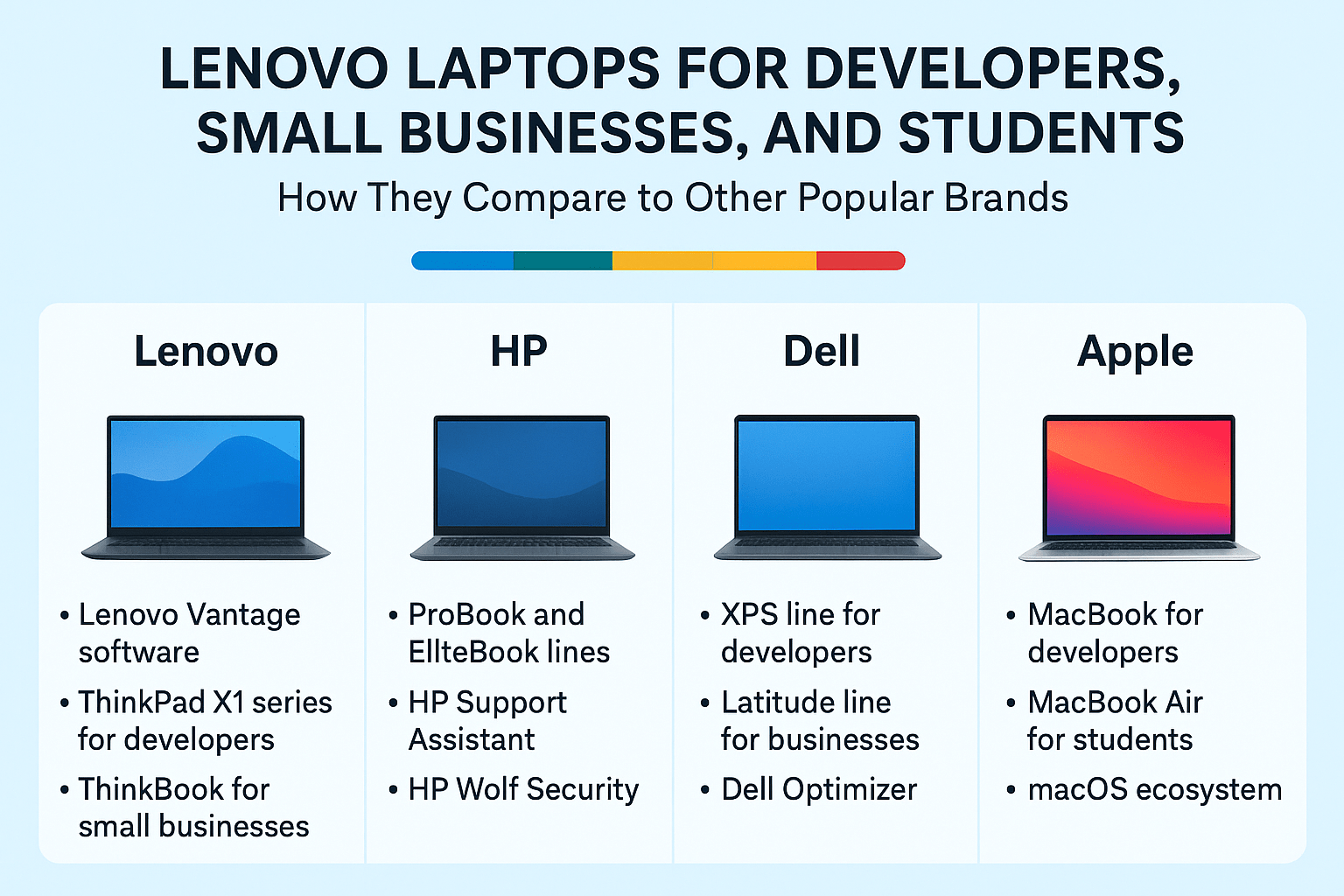
1. Lenovo Vantage Software

Unlike many manufacturers that pack in bloated software, Lenovo offers Lenovo Vantage, a genuinely useful pre-installed app.

  • What it does: Manages system updates, diagnostics, battery health, camera/microphone settings, and even offers Wi-Fi security checks.

  • For small businesses: It can scale up with enterprise features like fleet device provisioning and predictive maintenance.

  • For developers/students: It ensures drivers, BIOS, and firmware stay current without manual intervention.

👉 Comparison: Dell has Dell Optimizer, and HP provides HP Support Assistant. Apple, on the other hand, integrates these controls invisibly into macOS—more seamless, but less customizable.


2. Hardware Lines Tailored to Each Audience

  • ThinkBook (Small Businesses): Affordable, durable, and equipped with features like fingerprint readers and webcam shutters.

  • ThinkPad X1 Series (Developers): A premium line with top-tier build quality, high RAM capacity, Linux-friendly design, and long battery life.

  • ThinkPad P Series (Power Users): True mobile workstations with support for heavy tasks like CAD, AI, or 3D rendering.

  • Yoga (Students): Versatile 2-in-1 devices, some powered by Snapdragon X Elite chips for better battery life and AI acceleration.

  • Chromebook Plus 14 (Budget/Students): Bundled with Google AI tools, making it a study-friendly and cost-efficient choice.

👉 Comparison:

  • HP emphasizes its ProBook and EliteBook lines for small businesses, comparable to Lenovo’s ThinkBook.

  • Dell XPS rivals Lenovo’s ThinkPad X1, though XPS leans more toward design and display than rugged durability.

  • Apple MacBooks are excellent for students and developers who want seamless software-hardware integration, but they lack budget-friendly models and enterprise-focused customization.


3. Innovation Factor

Lenovo frequently experiments with bold hardware designs:

  • ThinkBook Plus Rollable: A laptop with a motorized rollable screen that expands from 14″ to 16.7″.

  • Yoga Book 9i: A dual-screen laptop for multitasking, code reviewing, or creative projects.

👉 Comparison: Apple tends to focus on refinement rather than radical hardware changes, while Dell’s Concept Luna and HP’s Spectre line show innovation mainly in sustainability and form factor.


Price and Value Considerations

  • Lenovo: Wide range from affordable refurbished ThinkPads ($400) to premium ThinkPad P1 workstations ($2,500+). Strong value for small businesses that need reliability at scale.

  • Dell: Competitive pricing with the Latitude (business) and XPS (developer) lines, though customizations often raise costs quickly.

  • HP: Known for slightly lower entry pricing but often less durable builds in lower tiers. Their higher-end EliteBooks are solid rivals to ThinkPads.

  • Apple: Premium pricing across the board, but MacBooks maintain resale value better than most PCs. Excellent for creative students and developers, but often out of reach for small business budgets.


Software Ecosystem and Support

  • Lenovo: Lenovo Vantage + Lenovo Pro (business support program). Strong Linux compatibility on ThinkPads.

  • Dell: Dell Optimizer + enterprise IT tools. Excellent for corporate fleet management.

  • HP: HP Wolf Security and HP Support Assistant make their laptops secure and easy to maintain.

  • Apple: macOS ecosystem shines for students and developers in creative/tech fields, but lacks enterprise fleet-level tools compared to PC brands.


Final Thoughts: Which Brand Fits You Best?

  • Developers: Lenovo ThinkPads (X1 or P Series) are excellent thanks to Linux support and rugged performance. Dell XPS is a strong alternative; MacBook Pros work best for those tied into Apple’s ecosystem.

  • Small Businesses: Lenovo’s ThinkBook line strikes the best balance between cost, durability, and security. HP’s ProBooks/EliteBooks are good alternatives, while Dell Latitudes provide more corporate IT features.

  • Students: Lenovo Yoga, Flex, and Chromebook models are versatile and budget-friendly. HP and Dell have solid mid-range options, but Apple’s MacBook Air remains the most student-popular device for long-term use (if budget permits).

👉 The Bottom Line:
Lenovo stands out for its unique Vantage software, Linux-friendly ThinkPads, and innovative designs. However, the “best” laptop depends on your needs—Apple for ecosystem lovers, Dell for premium build and design, HP for affordability, and Lenovo for balanced practicality across segments.


« Previous Page
Next Page »

Primary Sidebar

Recent Posts

  • 🧠 AI vs 🎮 Gaming vs 🛡️ Security Software
  • A Complete Free Learning Path to Master Both Software and Hardware (MIT-Level Self-Study Curriculum)
  • Twilio’s Hardware & Software Stack Explained — Skills Required and How to Build a Career in the Twilio Ecosystem
  • On-Premise vs Cloud Computing: Understanding the Real Difference with Microsoft Word Example
  • Quantum Technology Explained: What It Means for PCs, Gaming, and AI

Archives

  • March 2026
  • February 2026
  • January 2026
  • December 2025
  • September 2025
  • August 2025

Categories

  • Blog
Terms Display
software gaming VScode Github OSSU hardware cloud computing Twilio PrimeBook hosting MITx ai Codespace Harvard CS50 quantum

Start your hardware journey with clarity.Read Articles

Technzee

This website may use AI tools to assist in content creation. All articles are reviewed, edited, and fact-checked by our team before publishing. We may receive compensation for featuring sponsored products and services or when you click on links on this website. This compensation may influence the placement, presentation, and ranking of products. However, we do not cover all companies or every available product.

  • Home
  • Blog
  • Terms
  • Support
  • Subscribe
  • Contact