• Skip to primary navigation
  • Skip to main content
  • Skip to primary sidebar
technzee logo

Technzee

reaking Down the Machines That Power Computing

  • Home
  • Blog
  • Terms
    • Privacy
    • Disclaimer
  • Support
  • Subscribe
  • Contact
  • Show Search
Hide Search

PrimeOS AndroidOS PrimeBook HubSpot Website Builder

Working with HTML & Git on Primebook (PrimeOS / PrimeX) — A Practical Guide

January 15, 2026 by Rajeev Bagra


Image
Image
Image
Image

ߎ Who this session is for

  • Learners using Primebook / PrimeOS / PrimeX
  • Beginners learning HTML, Git, and basic web development
  • Anyone confused by errors like code: command not found or Git clone issues

ߧ Session Objective

By the end of this session, learners will be able to:

  • Understand what PrimeOS is (and what it is not)
  • Use Git safely without copy-paste errors
  • Edit HTML files using terminal-friendly tools
  • View HTML files correctly in a browser
  • Follow a realistic workflow suited to Primebook users

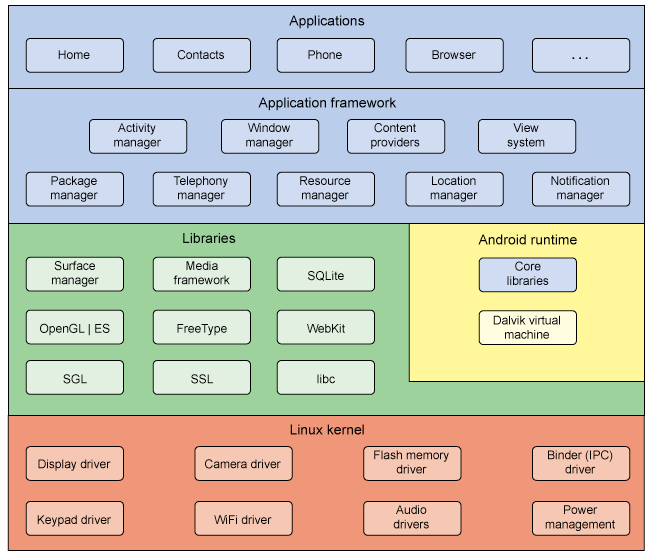
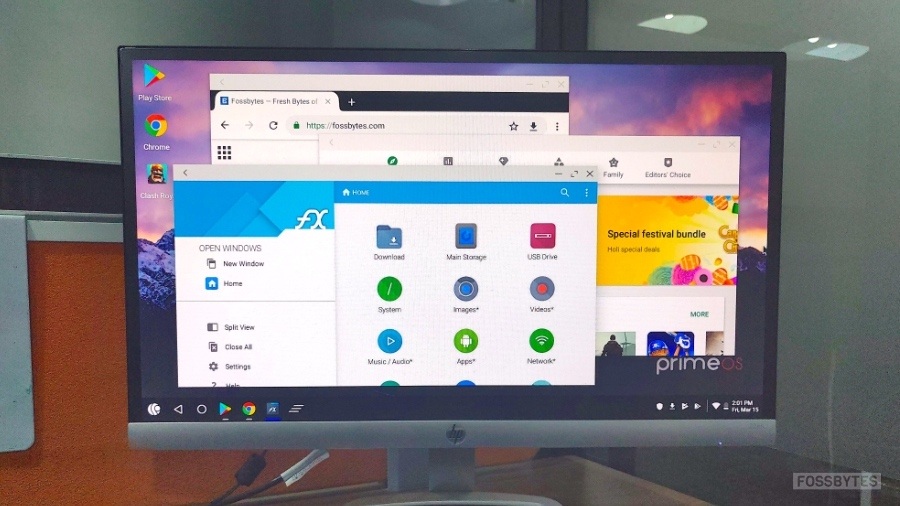
1️⃣ Understanding Your Environment (Most Important Lesson)

Image
Image
Image

Key Reality Check

PrimeOS / PrimeX is:

  • ✅ Android-based
  • ✅ Has a Linux-like terminal
  • ❌ NOT Ubuntu
  • ❌ NOT Windows
  • ❌ NOT AWS / cloud server

ߑ That’s why commands like this fail:

code test.html
sudo apt install code

And that’s normal, not your fault.


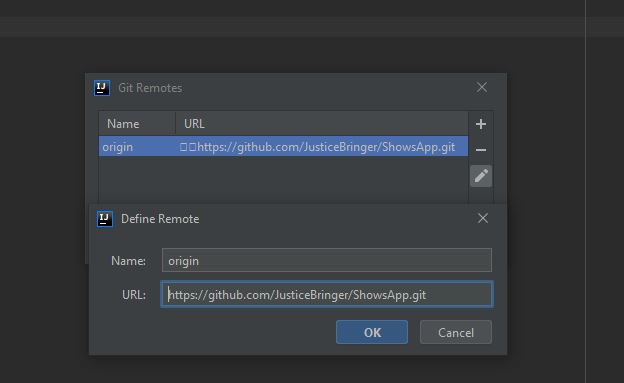
2️⃣ Git Basics on Primebook (Common Pitfalls & Fixes)

Image
Image
Image

❌ Common Error

fatal: protocol '?[200~https' is not supported

Why it happens

  • Copy-pasting GitHub URLs adds hidden characters
  • Terminal interprets them as invalid protocols

✅ Best Practice

Always type Git commands manually:

git clone https://github.com/USERNAME/REPOSITORY.git

3️⃣ Creating & Editing an HTML File (The Right Way)

Image
Image
Image

Create a file

touch test.html

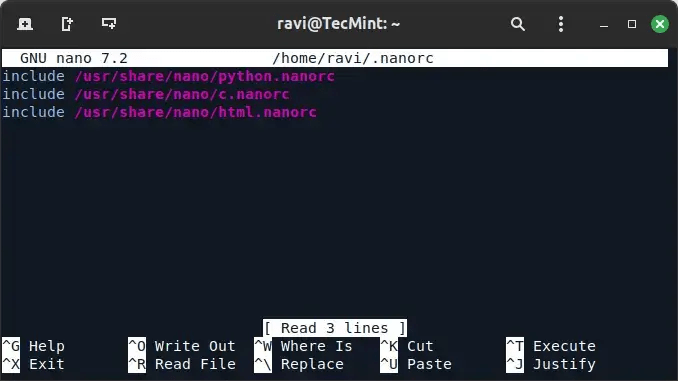
Edit using Nano (recommended)

nano test.html

Example content:

<!DOCTYPE html>
<html>
  <head>
    <title>My First Primebook Page</title>
  </head>
  <body>
    <h1>Hello from Primebook</h1>
  </body>
</html>

Save: Ctrl + O → Enter
Exit: Ctrl + X


4️⃣ Viewing the HTML File in a Browser

Image
Image
Image

✅ Method 1: Terminal

xdg-open test.html

✅ Method 2: Browser (Guaranteed)

Open Chrome and type:

file:///home/USERNAME/test/test.html

✅ Method 3: File Manager

  • Go to Home → test
  • Double-click test.html
  • Open with Chrome

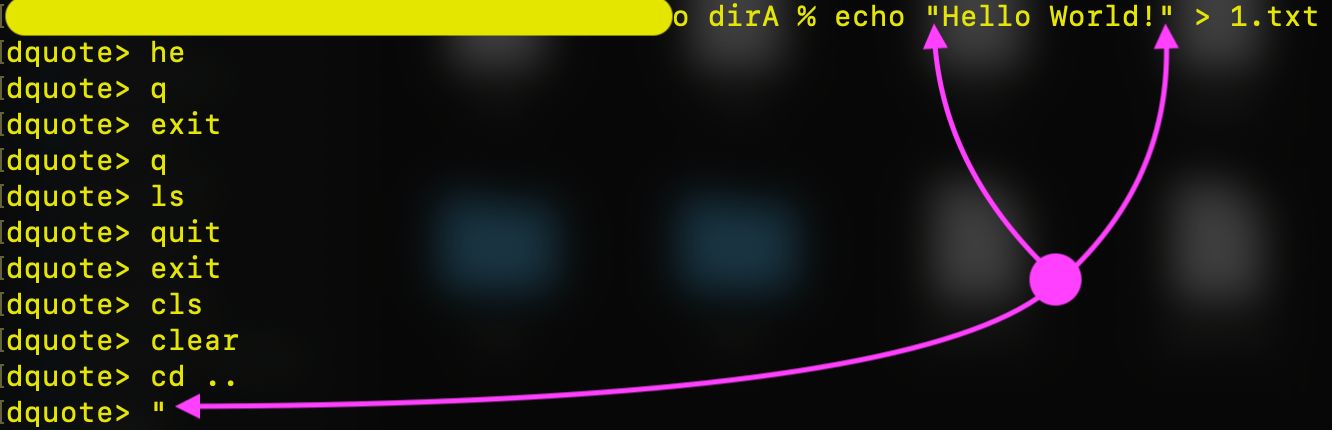
5️⃣ When the Terminal Shows > (Hidden Lesson)
Image
Image

If you ever see:

>

It means:

  • You started a quote (' or ")
  • Bash is waiting for you to finish

Fix instantly:

Ctrl + C

6️⃣ Recommended Workflow for Primebook Users
Image
Image
Image

ߟ Best Long-Term Workflow

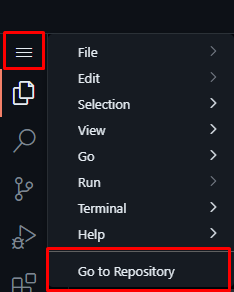
  1. Edit files using GitHub’s browser editor
  • Open repo on GitHub
  • Press . (dot) → VS Code opens in browser
  1. Commit & push online
  2. Sync locally:
git pull origin main

ߟ Use Nano

  • For quick fixes
  • For learning terminal basics

7️⃣ What Learners Should NOT Worry About

❌ “Why VS Code doesn’t install”
❌ “Why apt doesn’t work”
❌ “Why PrimeOS is different”

ߑ These are platform limits, not skill gaps.


ߧ Session Summary (Key Takeaways)

  • PrimeOS ≠ Ubuntu ≠ Windows
  • Git works well, but copy-paste carefully
  • Nano is your best editor locally
  • HTML files open via file:// in Chrome
  • Browser-based editors are powerful and valid


Can You Use HubSpot’s Drag-and-Drop Website Builder on PrimeOS (Primebook)?

August 26, 2025 by Rajeev Bagra

If you’ve recently bought a Primebook running PrimeOS (also called PtimeOS) and are exploring whether you can use HubSpot’s drag-and-drop website builder on it, you’re not alone. Many students, freelancers, and small business owners in India are turning to Primebook laptops as a budget-friendly option, but want to know whether advanced tools like HubSpot’s CMS Hub will run smoothly.

Let’s break it down.


What is PrimeOS (PtimeOS)?

PrimeOS is an Android-based operating system designed to bring a mobile-like experience to laptops. Instead of Windows or Linux, Primebooks run this lightweight OS, allowing users to install Android apps and run browsers in a familiar desktop interface.


What HubSpot Requires

HubSpot’s drag-and-drop website builder is part of its CMS Hub. According to HubSpot’s documentation, the builder works best on modern desktop browsers, including:

  • Google Chrome (latest version)

  • Mozilla Firefox (latest version)

  • Microsoft Edge (latest version)

  • Safari (for macOS users)

Mobile browsers and non-standard setups are not officially supported. That means while you may be able to access the builder on other platforms, HubSpot won’t guarantee performance or stability.


Will HubSpot Work on PrimeOS?

Here’s the honest answer: it might work, but it’s not guaranteed.

Since PrimeOS is Android-based, you’ll be relying on the Android version of Chrome or Firefox (or an x86-compatible build). If your browser is modern and up to date, you should be able to log in to HubSpot and load the website builder.

However, you may face:

  • Drag-and-drop glitches (elements not snapping properly)

  • Layout or rendering issues

  • Performance slowdowns compared to Windows/macOS

In short, PrimeOS is not an officially supported environment for HubSpot CMS.


Tips if You Want to Try

If you want to give it a go on your Primebook:

  1. Install the latest version of Chrome or Firefox from a trusted source.

  2. Log into HubSpot and open the drag-and-drop website editor.

  3. Test basic actions like dragging modules, editing text, and publishing.

  4. Keep an eye on performance. If glitches occur, save often.

For CRM tasks like managing contacts, sending emails, or tracking deals, you can also use the HubSpot mobile app—but note that the app doesn’t include the drag-and-drop builder.


Alternatives If It Doesn’t Work

If you find HubSpot doesn’t perform well on PrimeOS, here are some workarounds:

  • Dual Boot or Virtual Machine: Install a lightweight Linux distribution or Windows alongside PrimeOS for full compatibility.

  • Cloud/Desktop Access: Use a cloud PC service (like Windows 365, AWS WorkSpaces, or Chrome Remote Desktop) to access HubSpot through a supported OS.

  • Borrow or share a system: For heavy design tasks, switch to a supported computer, and continue daily management from your Primebook.


Bottom Line

Using HubSpot’s drag-and-drop builder on PrimeOS (Primebook) is possible—but comes with risks. HubSpot doesn’t officially support Android-based environments, so while you can experiment with modern browsers, you may run into performance or UI problems.

For serious website building, a Windows, macOS, or Linux desktop is the recommended setup. But for learning, testing, and light edits, PrimeOS could still get the job done with the right browser.

On checking on Chrome browser on PrimeBook, while a Blogger website like this one can be seamlessly edited on PrimeBook, there are hiccups on HubSpot website builder as of now.


👉 If you’re considering using your Primebook as your main work machine, weigh the pros and cons carefully. For CRM and marketing tasks, it’ll do fine. For heavy drag-and-drop site design, you may want a backup system.


Primary Sidebar

Recent Posts

  • GitHub Codespaces vs VS Code: What’s the Difference? (Explained Simply)
  • Hosting a Website From a Personal Computer (Self-Hosting): Is It Possible?
  • Working with HTML & Git on Primebook (PrimeOS / PrimeX) — A Practical Guide
  • There Is No Sharp Line Between Hardware, Software, and the Cloud — It’s All One Continuum
  • Can You Use a Primebook Laptop for MCA DSC Filing?

Archives

  • January 2026
  • December 2025
  • September 2025
  • August 2025

Categories

  • Blog
  • Dell
  • IBM
  • Laptops Lenovo laptops
  • Linux
  • LinuxOne
  • LinuxONE IBM
  • mainframes
  • operating system
  • OS
  • PrimeOS AndroidOS PrimeBook HubSpot Website Builder
  • PrimeOS Operating Systems AndroidOS WindowsOS Linux
  • Windows OS
  • x86 LinuxONE mainframes IBM

Trending (30 days)

  • Working with HTML & Git on Primebook (PrimeOS /… ߎ Who this session is for Learners using Primebook /… (0)
  • Breathe New Life Into Your Old Dell Mini Laptop:… If you still have a Dell mini laptop running Windows… (0)
  • There Is No Sharp Line Between Hardware, Software,… In everyday discussions, we often draw hard boundaries between concepts… (0)
  • GitHub Codespaces vs VS Code: What’s the Difference?… When beginners start learning coding (or even when professionals switch… (0)
  • Hosting a Website From a Personal Computer… At the end of the day, every website—whether it’s on… (0)

Start your hardware journey with clarity.Read Articles

Technzee

This website may use AI tools to assist in content creation. All articles are reviewed, edited, and fact-checked by our team before publishing. We may receive compensation for featuring sponsored products and services or when you click on links on this website. This compensation may influence the placement, presentation, and ranking of products. However, we do not cover all companies or every available product.

  • Home
  • Blog
  • Terms
  • Support
  • Subscribe
  • Contact
Scroll Up