



ߎ Who this session is for
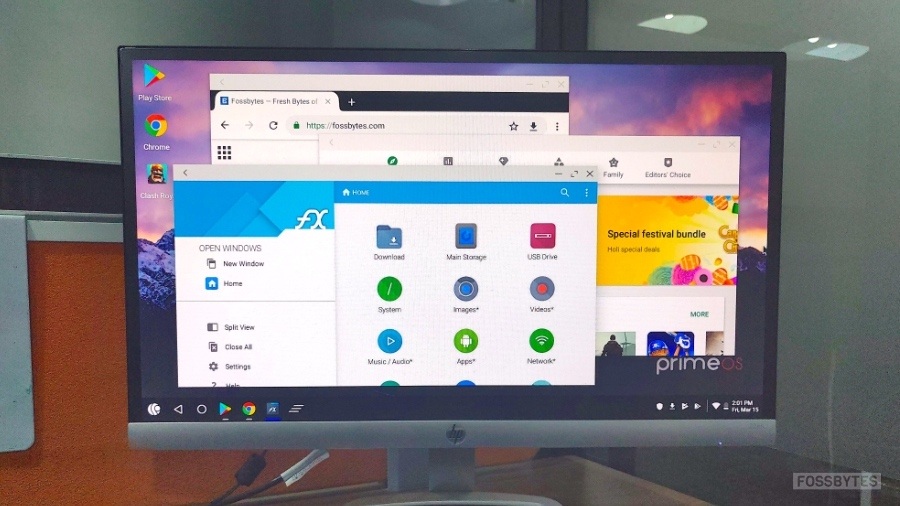
- Learners using Primebook / PrimeOS / PrimeX
- Beginners learning HTML, Git, and basic web development
- Anyone confused by errors like
code: command not foundor Git clone issues
ߧ Session Objective
By the end of this session, learners will be able to:
- Understand what PrimeOS is (and what it is not)
- Use Git safely without copy-paste errors
- Edit HTML files using terminal-friendly tools
- View HTML files correctly in a browser
- Follow a realistic workflow suited to Primebook users
1️⃣ Understanding Your Environment (Most Important Lesson)


Key Reality Check
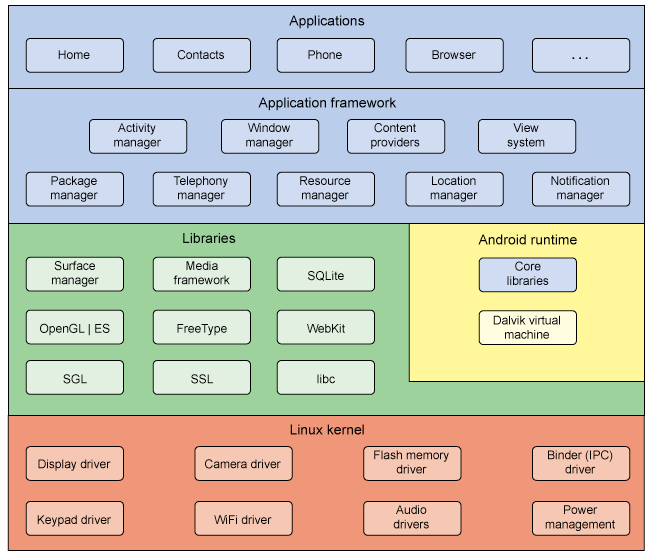
PrimeOS / PrimeX is:
- ✅ Android-based
- ✅ Has a Linux-like terminal
- ❌ NOT Ubuntu
- ❌ NOT Windows
- ❌ NOT AWS / cloud server
ߑ That’s why commands like this fail:
code test.html
sudo apt install code
And that’s normal, not your fault.
2️⃣ Git Basics on Primebook (Common Pitfalls & Fixes)


❌ Common Error
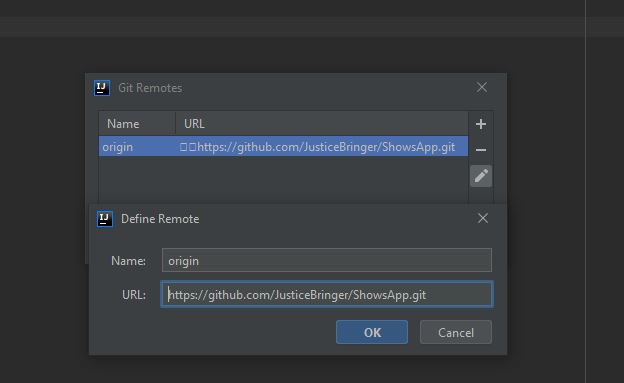
fatal: protocol '?[200~https' is not supportedWhy it happens
- Copy-pasting GitHub URLs adds hidden characters
- Terminal interprets them as invalid protocols
✅ Best Practice
Always type Git commands manually:
git clone https://github.com/USERNAME/REPOSITORY.git3️⃣ Creating & Editing an HTML File (The Right Way)

Create a file
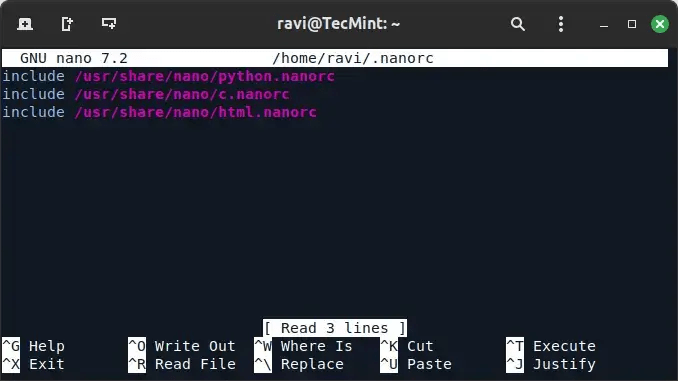
touch test.htmlEdit using Nano (recommended)
nano test.htmlExample content:
<!DOCTYPE html>
<html>
  <head>
    <title>My First Primebook Page</title>
  </head>
  <body>
    <h1>Hello from Primebook</h1>
  </body>
</html>
Save: Ctrl + O → Enter
Exit: Ctrl + X
4️⃣ Viewing the HTML File in a Browser


✅ Method 1: Terminal
xdg-open test.html✅ Method 2: Browser (Guaranteed)
Open Chrome and type:
file:///home/USERNAME/test/test.html✅ Method 3: File Manager
- Go to Home → test
- Double-click
test.html - Open with Chrome
5️⃣ When the Terminal Shows > (Hidden Lesson)
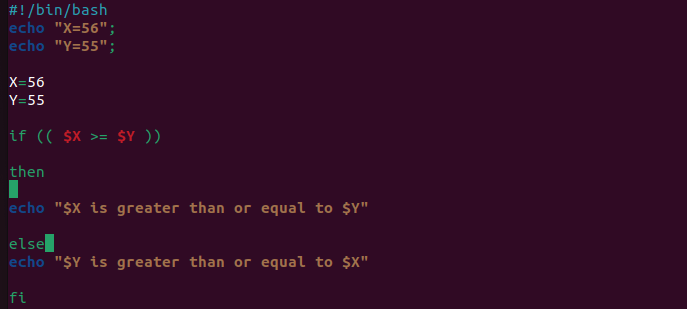
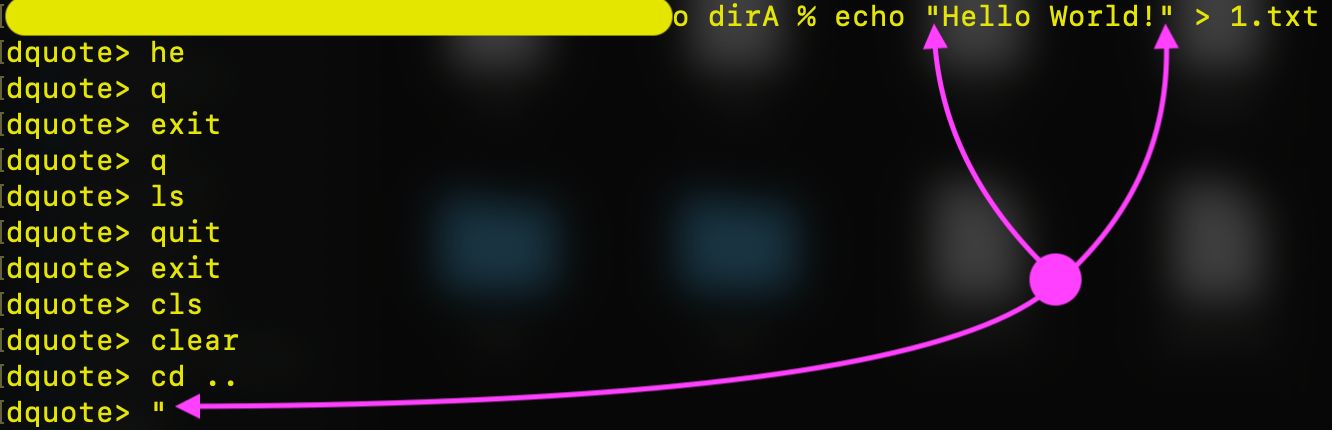
If you ever see:
>It means:
- You started a quote (
'or") - Bash is waiting for you to finish
Fix instantly:
Ctrl + C6️⃣ Recommended Workflow for Primebook Users
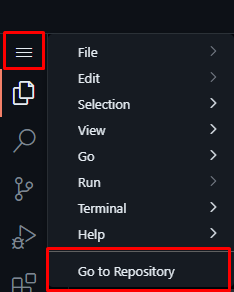


ߟ Best Long-Term Workflow
- Edit files using GitHub’s browser editor
- Open repo on GitHub
- Press
.(dot) → VS Code opens in browser
- Commit & push online
- Sync locally:
git pull origin mainߟ Use Nano
- For quick fixes
- For learning terminal basics
7️⃣ What Learners Should NOT Worry About
❌ “Why VS Code doesn’t install”
❌ “Why apt doesn’t work”
❌ “Why PrimeOS is different”
ߑ These are platform limits, not skill gaps.
ߧ Session Summary (Key Takeaways)
- PrimeOS ≠ Ubuntu ≠ Windows
- Git works well, but copy-paste carefully
- Nano is your best editor locally
- HTML files open via file:// in Chrome
- Browser-based editors are powerful and valid